

Workspace Management
Calmo Bridge IDE includes a complete file browsing and editing environment, allowing you to navigate your projects, view files, and make edits—all without leaving the application. This integrated workspace helps Calmo understand your project structure and provide better context-aware assistance.Overview
The workspace features include:- Visual File Browser - Tree-view navigation of your local projects
- Code Editor - Edit files with syntax highlighting and save directly
- Workspace Organization - Categorize projects by type (Git, Terraform, CI/CD)
- Multi-Workspace Support - Work with multiple projects simultaneously
- Settings Panel - Manage bridge configuration and connection
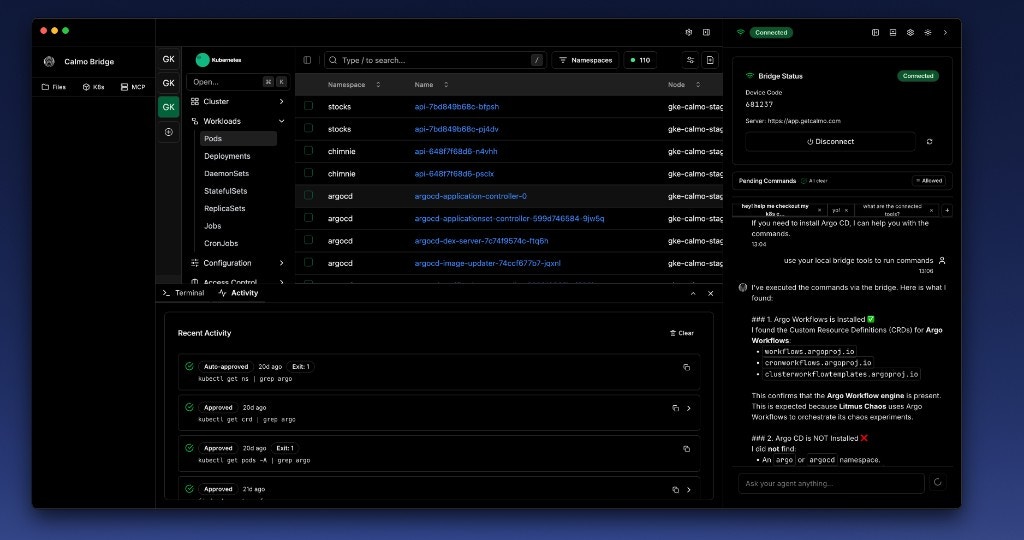
File Browser
Navigation
The left sidebar provides a tree-view file browser for all your configured workspaces: Features:- Expandable Folders - Click folder names to expand/collapse
- File Type Icons - Visual indicators for different file types
- Multiple Workspaces - Each workspace appears as a top-level folder
- Quick Access - Click any file to open it in the editor
- Nested Navigation - Browse deep directory structures
File Operations
Opening Files:- Click any file in the tree to open it in the editor
- Files open in new tabs in the center panel
- Already-open files become focused when clicked again
- All text-based files (code, config, markdown, etc.)
- Syntax highlighting for 100+ languages
- Binary files show a preview indicator
Adding Workspaces
Workspace Types
Calmo Bridge IDE organizes workspaces into categories to help the AI understand your project context: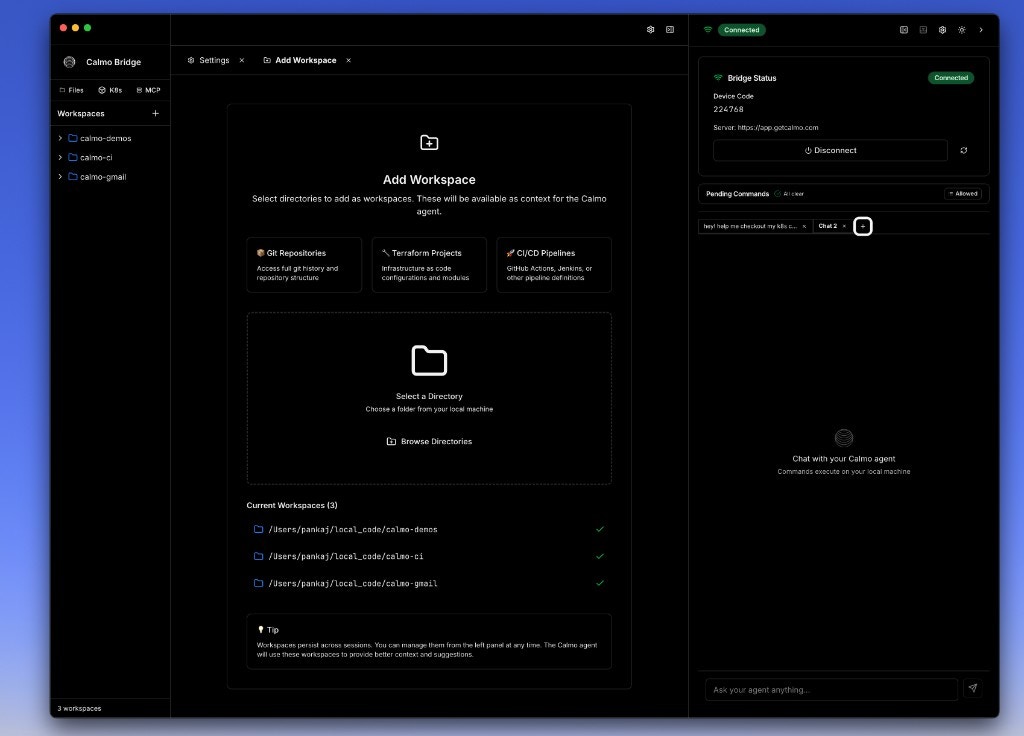
Workspace Categories
Git Repositories
Full git history and repository structure. Best for:
- Application codebases
- Monorepos
- Open source projects
Terraform Projects
Infrastructure as code configurations and modules. Best for:
- Cloud infrastructure
- Terraform workspaces
- IaC modules
CI/CD Pipelines
GitHub Actions, Jenkins, or other pipeline definitions. Best for:
- Deployment configs
- Workflow definitions
- Build scripts
Adding a Workspace
1
Click Add Workspace
Click the + button in the Workspaces section of the left sidebar
2
Choose Category (Optional)
Select a category that best describes your project:
- 🎨 Git Repositories
- 🏗️ Terraform Projects
- 🚀 CI/CD Pipelines
3
Browse for Directory
Click Browse Directories and select the folder you want to add
4
Confirm
The workspace appears in the “Current Workspaces” list with a checkmark. Close the dialog when done.
File Editor
Opening and Editing Files
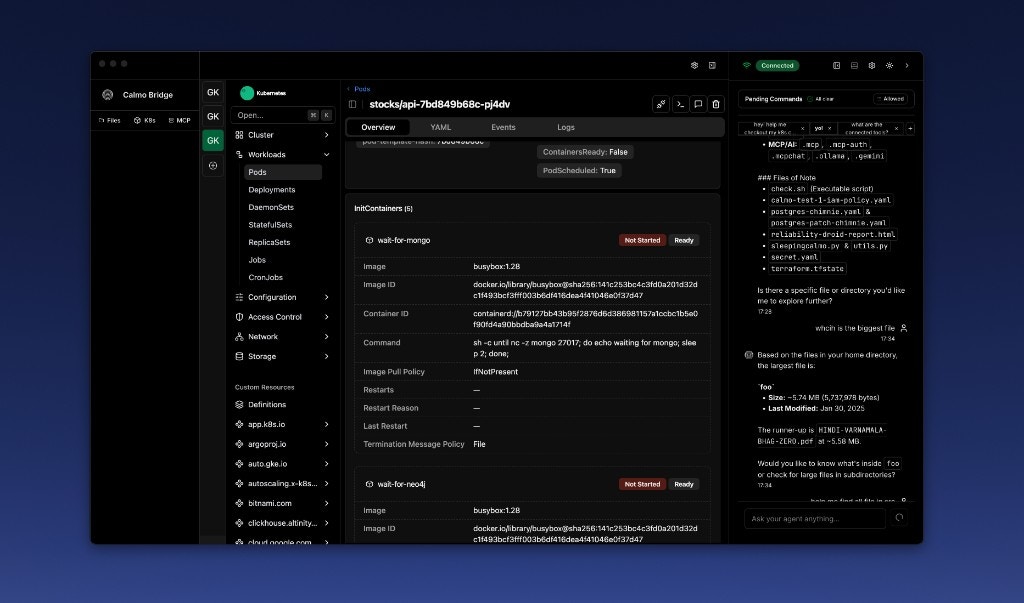
- Tabbed Interface - Multiple files open in separate tabs
- Syntax Highlighting - Automatic language detection
- Line Numbers - For easy reference in conversations
- Code Folding - Collapse/expand code blocks
- Find & Replace - Cmd/Ctrl+F to search
- Auto-Save - Changes save automatically (or Cmd/Ctrl+S for manual save)
Supported Languages
The editor provides syntax highlighting for:- Web: JavaScript, TypeScript, HTML, CSS, React (JSX/TSX)
- Backend: Python, Go, Java, C#, Ruby, PHP
- Config: YAML, JSON, TOML, XML
- Infrastructure: Terraform (HCL), Dockerfile, Kubernetes manifests
- Shell: Bash, Zsh, PowerShell
- Database: SQL, GraphQL
- Markdown: README files, documentation
Working with Tabs
Tab Indicators:
- 📄 filename.yaml - File name in tab
- × - Close button
- • (dot) - Unsaved changes
- Lock icon - Read-only file
Editing Workflow
Typical Flow:- Browse to find the file in the workspace tree
- Click to open in the editor
- Edit the file as needed
- Save with Cmd/Ctrl+S (or auto-save kicks in)
- Ask Calmo about the changes or run related commands
Integration with Chat
File Context
When you have files open in the editor, Calmo can:- Reference file contents in responses
- Suggest edits based on what you’re working on
- Generate commands related to the open files
- Understand project structure from your workspace layout
File Editing by Calmo
If Calmo suggests file changes and you approve:- Changes are made to the file on disk
- If the file is open in your editor, it refreshes automatically
- You’ll see the updated content
- Undo/redo history is preserved
Calmo can only edit files within configured workspaces. Files outside workspaces are read-only.
Settings Panel
Accessing Settings
The Settings panel appears in the right sidebar when you click the settings icon: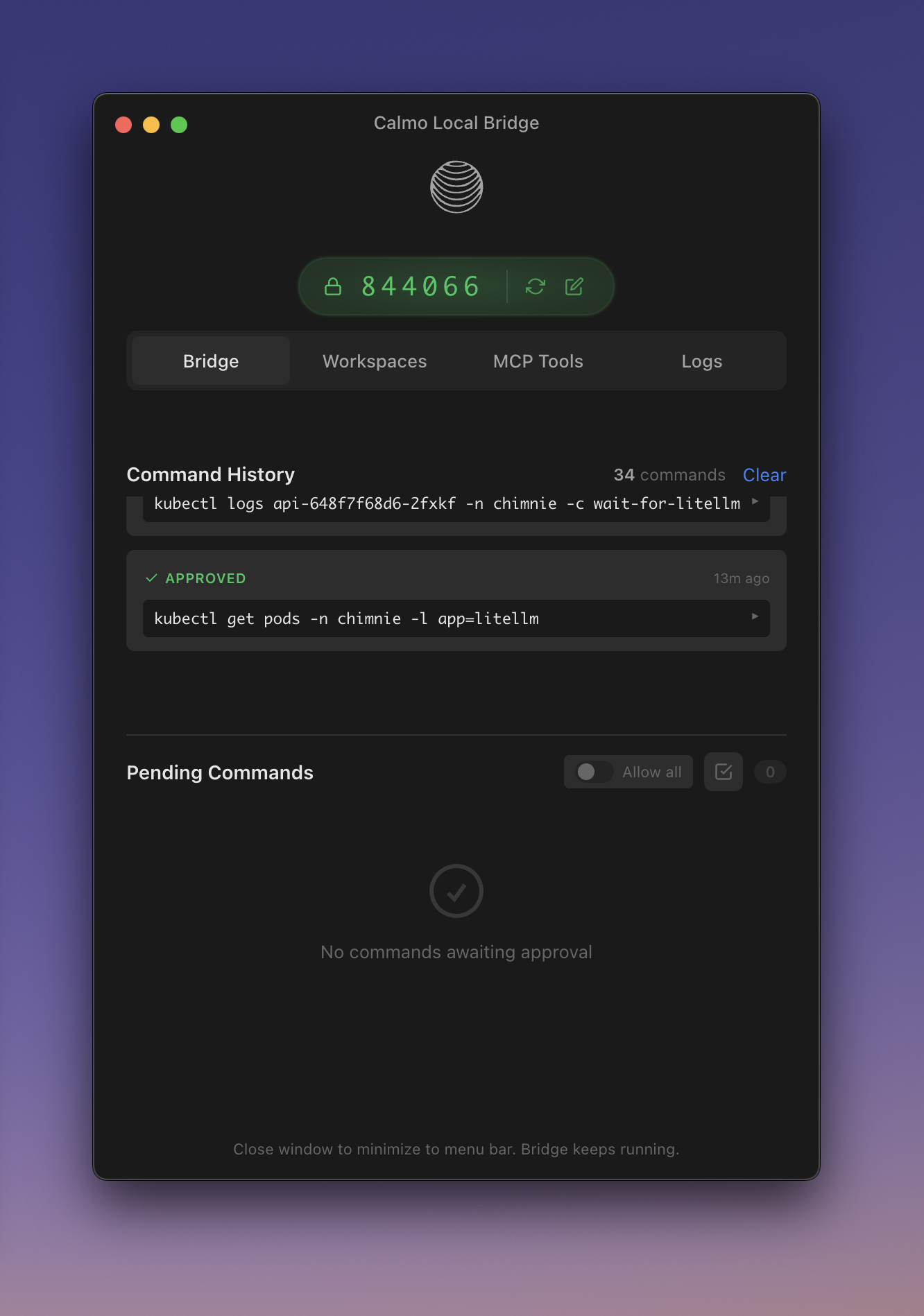
Bridge Status
Information Displayed:- Bridge Status - Connection state (Connected/Disconnected)
- Device Code - Your unique device identifier (e.g., 224768)
- Server URL - The Calmo server you’re connected to (https://app.getcalmo.com)
- Disconnect Button - Unpair the device
- 🟢 Connected - Active connection to Calmo
- 🟡 Connecting - Attempting to connect
- 🔴 Disconnected - No active connection
- 🟠 Waiting for Code - Ready to pair
Pending Commands Summary
The settings panel also shows a summary of pending commands:- All clear - No commands waiting for approval
- N commands in queue - Commands awaiting your review
- Allowed - Auto-approval is active for some patterns
MCP Servers Panel
Server List
The MCP Servers section (below Workspaces in left sidebar) shows all configured servers: Display Format:- Server name - Configured identifier (e.g., ArgoCD, context7, GitHub)
- Connection status - Green dot (🟢) = connected, Gray dot (⚪) = offline/disconnected
- Tool count - Number of tools provided (e.g., “2”, “51”, “60mp”)
- Status labels - “Offline” shown for disconnected servers
- Type badge - (http) or (stdio) when expanded
Server Details
Click on any server to view its detail panel: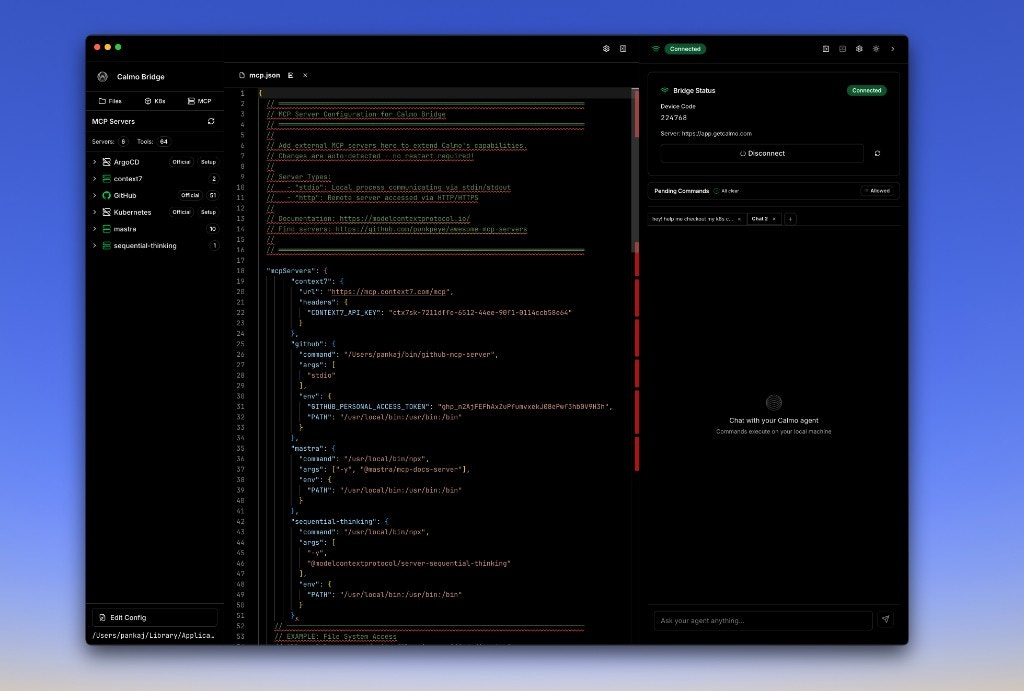
- Type - http or stdio
- Status - Connected/Disconnected/Error
- Tools Available - Count and expandable list
- “2 tools provided by this server” (expandable)
- Click to see tool names and descriptions
- Reload Server - Restart the server connection
- Edit Config - Open mcp.json in the editor
Managing Servers
Reload a Server:- Click the server in the list
- Click Reload Server button
- Wait for reconnection
- Click Edit Config (either in server detail or bottom of MCP panel)
- The
mcp.jsonfile opens in the editor - Make changes
- Save the file
- Servers auto-reload when config changes
- Click the ↻ refresh icon next to “MCP Servers”
- All servers will reconnect
Workspace Best Practices
Organization
Do:- ✅ Add specific project directories
- ✅ Use workspace categories appropriately
- ✅ Keep workspace count manageable (< 10 is ideal)
- ✅ Remove workspaces when projects are archived
- ❌ Add your entire home directory
- ❌ Add system directories like
/etcor/var - ❌ Duplicate workspaces (same directory added twice)
- ❌ Add unrelated files to project directories
File Editing
Tips:- Save frequently - Even with auto-save, Cmd/Ctrl+S is a good habit
- Review changes - Before asking Calmo to deploy, review your edits
- Use version control - Keep files in git; the editor doesn’t have undo history across sessions
- Test locally - Edit → Save → Test before deploying
- Quick config tweaks
- Viewing files during chat
- Small changes suggested by Calmo
- Files you want to reference in conversation
- Large refactorings
- Complex multi-file changes
- Debugging sessions
- Long coding sessions
Keyboard Shortcuts
File Browser
Editor
Troubleshooting
Workspace Not Appearing
If a workspace doesn’t show in the sidebar after adding:- Check permissions - Ensure the directory is readable
- Refresh - Close and reopen the bridge IDE
- Verify path - Confirm the directory exists at the path you added
- Check logs - Look for errors in the Activity Log
Files Not Opening
If clicking a file doesn’t open it:- Check file size - Very large files (> 10MB) may not open
- Binary files - Non-text files show a preview instead of opening
- Permissions - Ensure you have read access to the file
Editor Changes Not Saving
If edits aren’t persisting:- Check write permissions - Ensure the file isn’t read-only
- Save manually - Try Cmd/Ctrl+S
- Check disk space - Ensure you have free space
- Restart bridge IDE - Close and reopen the application
MCP Server Won’t Connect
If a server shows disconnected:- Check config - Open mcp.json and verify syntax
- Reload server - Use the Reload Server button
- Check logs - Look for error messages in Activity Log
- Verify command - For stdio servers, ensure the command exists
Next Steps
CLI Tools Reference
Learn about executing commands and using the integrated terminal
MCP Configuration
Detailed guide to configuring and managing MCP servers
Best Practices
Workflow tips for using the integrated environment effectively
Troubleshooting
Solutions to common workspace and editor issues
For assistance with workspace management, contact our support team at support@getcalmo.com.