

MCP Configuration
The Model Context Protocol (MCP) is an open standard that allows AI assistants to connect to external tools and data sources. Calmo Bridge IDE supports MCP servers, enabling you to extend Calmo’s capabilities with documentation lookup, specialized tools, sequential thinking, and more—all integrated into the same workspace.What is MCP?
MCP provides a standardized way for AI applications to:- Access External Tools - Connect to specialized tools and services
- Retrieve Documentation - Fetch up-to-date docs and code examples
- Enable New Capabilities - Add sequential thinking, file access, database queries, and more
- Extend Context - Give Calmo access to information beyond its training data
Welcome Wizard
During initial setup, the Welcome screen introduces Calmo Bridge IDE: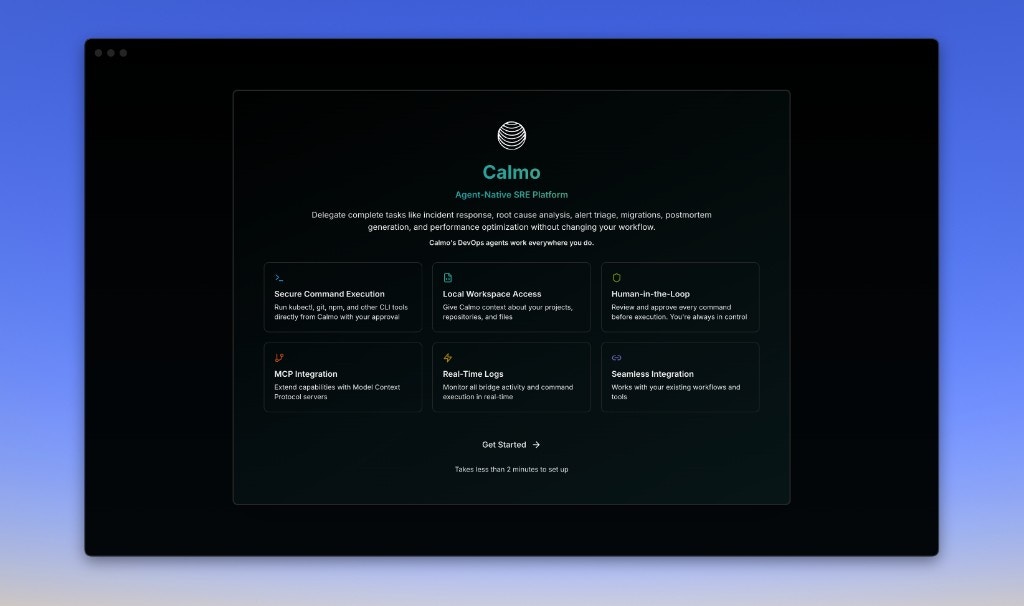
- Secure Command Execution - Run kubectl, git, npm, and other CLI tools directly from Calmo with your approval
- Local Workspace Access - Give Calmo context about your projects, repositories, and files
- Human-in-the-Loop - Review and approve every command before execution. You’re always in control
- MCP Integration - Extend capabilities with Model Context Protocol servers
- Real-Time Logs - Monitor bridge activity and command execution in real-time
- Seamless Integration - Works with your existing workflows and tools
Viewing MCP Servers
Server List Panel
The MCP Servers section appears in the left sidebar below Workspaces: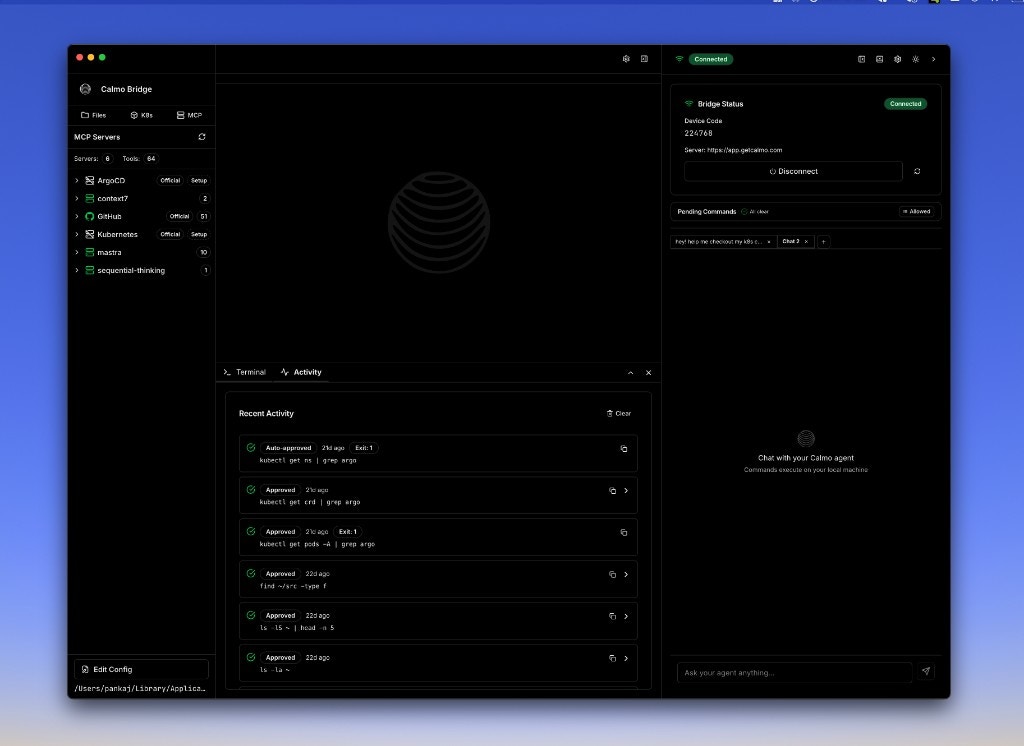
- Servers count - Total number of configured servers (6)
- Tools count - Total tools across all servers (64)
- Refresh icon (↻) - Reload all servers
- Server name - Configured identifier (e.g., “ArgoCD”, “context7”, “GitHub”)
- Status indicator - Green dot (🟢) = connected/online, Gray dot (⚪) = disconnected/offline
- Tool count - Number of tools provided (e.g., “2”, “51”, “60mp”, “5emp”)
- Status label - “Offline” displayed for disconnected servers
- Expand arrow (>) - Click to view server details
Server Detail View
Click on any server name to open its detail panel: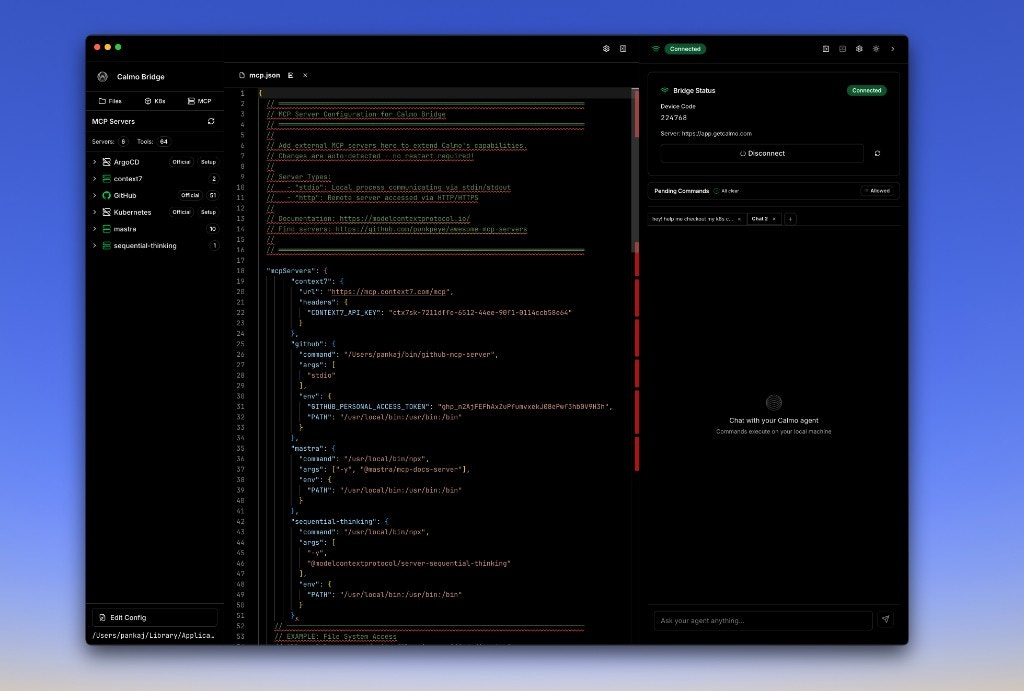
- Server name - Large heading (e.g., “context7”)
- Connected badge - Green status indicator
- Type - Transport type (http or stdio)
- Status - Connection state (Connected, Disconnected, Error)
- Tools Available - Count of tools this server provides
- “2 tools provided by this server” (expandable)
- Click to see list of tool names and descriptions
- Reload Server - Restart this server’s connection
- Edit Config - Open
mcp.jsonin the editor
Configuring MCP Servers
Accessing the Configuration
There are two ways to edit MCP configuration: Method 1: From Server Detail Panel- Click on any server in the MCP Servers list
- Click Edit Config button in the detail panel
- Scroll to the bottom of the MCP Servers panel
- Click Edit Config button
mcp.json file in the center editor panel.
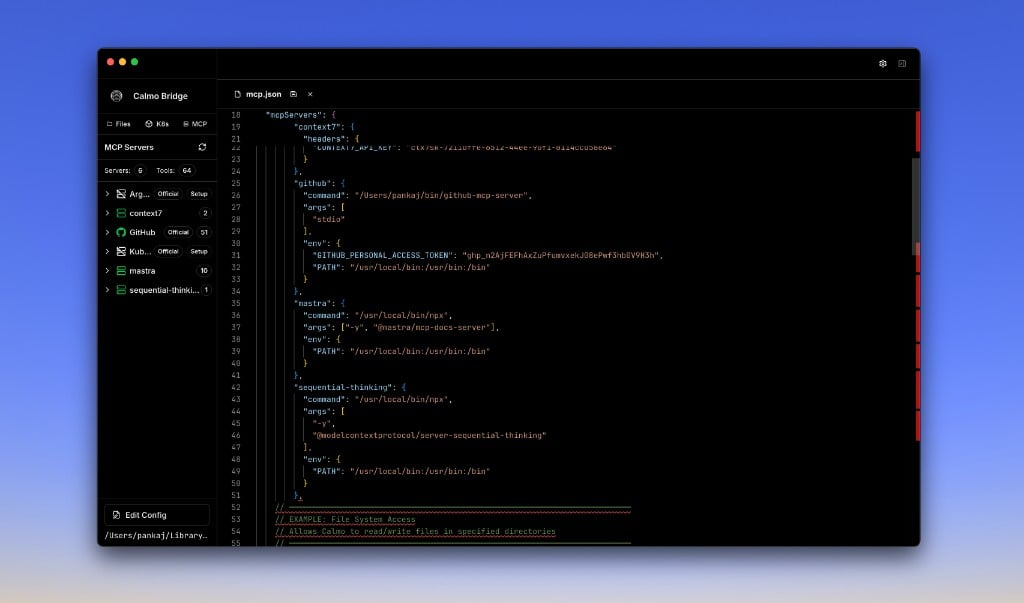
- macOS:
~/Library/Application Support/Calmo Bridge IDE/mcp.json - Windows:
%APPDATA%\Calmo Bridge IDE\mcp.json - Linux:
~/.config/Calmo Bridge IDE/mcp.json
Configuration Format
The configuration uses JSON format with anmcpServers object:
Server Types
Stdio Servers
Local processes that communicate via stdin/stdout. Best for npm packages and local tools. Configuration:
Optional Fields:
Finding Command Paths:
HTTP/HTTPS Servers
Remote servers accessed over the network. Best for cloud-hosted services. Configuration:
Optional Fields:
Example Configurations
Documentation Server (Context7)
Provides up-to-date documentation for any library:resolve-library-id- Find the correct library identifierget-library-docs- Retrieve documentation for any library
- “Show me the React docs for useState”
- “How do I use Terraform’s aws_instance resource?”
- “Get me examples of using Express.js middleware”
Mastra Documentation
Access Mastra.ai documentation, examples, and migration guides:mastraDocs- Access documentationmastraExamples- Code examplesmastraBlog- Blog posts and tutorialsmastraChanges- ChangelogmastraMigration- Migration guides- …and more
GitHub Integration
Access GitHub repositories, issues, and pull requests:- “List open issues in my repo”
- “Create a PR for this branch”
- “Show me recent commits”
Sequential Thinking
Enables structured problem-solving through step-by-step reasoning:sequentialthinking- Structured reasoning tool
- Complex debugging
- Architecture decisions
- Multi-step problem solving
Complete Example
A full configuration with multiple servers:Managing Servers
Reloading Servers
After editing the configuration, reload servers to apply changes: Reload All Servers:- Click the ↻ refresh icon in the MCP Servers panel header
- All servers reconnect with new configuration
- Click on the server in the list
- Click Reload Server button in the detail panel
- That server restarts with updated config
- The IDE watches
mcp.jsonfor changes - Servers automatically reload when you save the file
- No manual reload needed in most cases
Disabling a Server
To temporarily disable a server without removing it:Removing a Server
To permanently remove a server:- Click Edit Config in the MCP Servers panel
- Delete the entire server object from
mcpServers - Save the file
- The server disappears from the server list
Viewing Server Logs
Check server activity and errors in the Activity Log:- Switch to the Activity tab in the bottom panel
- Look for MCP-related log entries:
Popular MCP Servers
Official Servers
Community Servers
Platform-Specific Configuration
macOS/Linux
Standard stdio server configuration:Windows
On Windows,npx is a batch script that requires shell access. Wrap with cmd /c:
Security Considerations
Best Practices:- Review Server Code - Understand what servers do before adding them
- Limit Permissions - Some servers request file system or network access
- Secure API Keys - Keep API keys private; don’t commit
mcp.jsonto git - Monitor Logs - Watch for unexpected behavior in the Activity Log
- Use HTTPS - For remote servers, always use https:// URLs
- Validate Sources - Only install servers from trusted repositories
Troubleshooting
Server Won’t Connect
If a server shows disconnected in the panel:-
Check the configuration
- Click Edit Config and verify JSON syntax
- Look for typos in server name, command, or URL
- Validate all required fields are present
-
Verify command path (stdio servers)
Use the full path shown in the config.
-
Check environment (stdio servers)
- Ensure PATH includes necessary directories
- Verify npm packages are installed globally or accessible
-
Review logs
- Switch to Activity tab
- Look for error messages from the server
- Common errors:
spawn ENOENT- Command not foundConnection refused- URL incorrect (HTTP servers)Unauthorized- Invalid API key (HTTP servers)
-
Reload the server
- Click on the server
- Click Reload Server button
Server Connected But No Tools
If a server shows “Connected” but 0 tools:- Wait for initialization - Some servers take 10-30 seconds to load tools
- Check stderr - Look in Activity Log for startup errors
- Verify package - Ensure the npm package name is correct
- Reload - Click Reload Server to try again
API Key Issues (HTTP Servers)
If an HTTP server fails to connect:-
Check header format
Header names must match what the server expects.
-
Verify key validity
- Ensure the API key is active
- Check it has proper permissions
- Test with curl:
-
Check URL
- Confirm the full endpoint URL
- Ensure it includes
/mcpor correct path
Configuration Errors
If you get JSON parsing errors:-
Validate JSON syntax
- Use an online JSON validator
- Common mistakes: missing commas, trailing commas, unquoted keys
-
Check for typos
mcpServers(notmcpServer)- Correct quotes (double quotes for JSON)
-
Escape special characters
- Backslashes in Windows paths:
C:\\path\\to\\file - Or use forward slashes:
C:/path/to/file
- Backslashes in Windows paths:
Server Crashes or Restarts
If a server repeatedly disconnects:- Check logs for error patterns
- Update server package
- Report to server maintainers with error logs
Next Steps
Workspace Management
Learn about the file browser and workspace organization
CLI Tools Reference
Explore command execution with the integrated terminal
Best Practices
Tips for using MCP servers effectively in your workflow
Troubleshooting
Solutions to common MCP server issues
For assistance with MCP configuration, contact our support team at support@getcalmo.com.