> ## Documentation Index
> Fetch the complete documentation index at: https://docs.getcalmo.com/llms.txt
> Use this file to discover all available pages before exploring further.
# Workspace Management
> Navigate, organize, and edit your local projects with Calmo Bridge IDE integrated file browser and editor
# Workspace Management
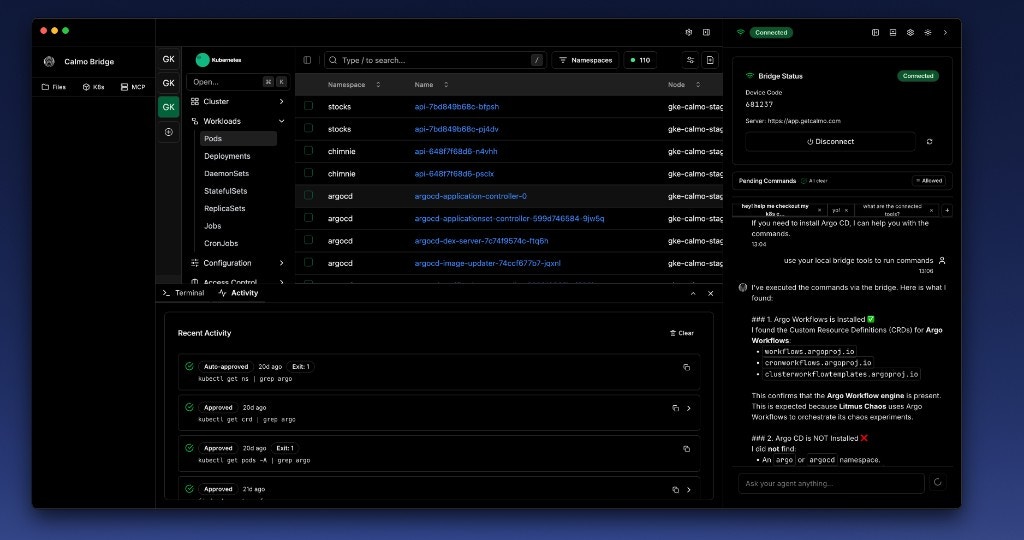
Calmo Bridge IDE includes a complete file browsing and editing environment, allowing you to navigate your projects, view files, and make edits—all without leaving the application. This integrated workspace helps Calmo understand your project structure and provide better context-aware assistance.
## Overview
The workspace features include:
* **Visual File Browser** - Tree-view navigation of your local projects
* **Code Editor** - Edit files with syntax highlighting and save directly
* **Workspace Organization** - Categorize projects by type (Git, Terraform, CI/CD)
* **Multi-Workspace Support** - Work with multiple projects simultaneously
* **Settings Panel** - Manage bridge configuration and connection
 ## File Browser
### Navigation
The left sidebar provides a tree-view file browser for all your configured workspaces:
**Features:**
* **Expandable Folders** - Click folder names to expand/collapse
* **File Type Icons** - Visual indicators for different file types
* **Multiple Workspaces** - Each workspace appears as a top-level folder
* **Quick Access** - Click any file to open it in the editor
* **Nested Navigation** - Browse deep directory structures
**Example Structure:**
```
📁 Workspaces
├─ 📁 calmo-demos
│ ├─ 📁 src
│ ├─ 📄 package.json
│ └─ 📄 README.md
├─ 📁 calmo-ci
│ ├─ 📁 environments
│ │ ├─ 📁 prod
│ │ └─ 📁 staging
│ └─ 📄 kustomization.yaml
└─ 📁 calmo-gmail
└─ 📁 terraform
```
### File Operations
**Opening Files:**
* Click any file in the tree to open it in the editor
* Files open in new tabs in the center panel
* Already-open files become focused when clicked again
**Supported File Types:**
* All text-based files (code, config, markdown, etc.)
* Syntax highlighting for 100+ languages
* Binary files show a preview indicator
Files edited by Calmo (via chat commands) automatically refresh in the editor if they're open.
## Adding Workspaces
### Workspace Types
Calmo Bridge IDE organizes workspaces into categories to help the AI understand your project context:
## File Browser
### Navigation
The left sidebar provides a tree-view file browser for all your configured workspaces:
**Features:**
* **Expandable Folders** - Click folder names to expand/collapse
* **File Type Icons** - Visual indicators for different file types
* **Multiple Workspaces** - Each workspace appears as a top-level folder
* **Quick Access** - Click any file to open it in the editor
* **Nested Navigation** - Browse deep directory structures
**Example Structure:**
```
📁 Workspaces
├─ 📁 calmo-demos
│ ├─ 📁 src
│ ├─ 📄 package.json
│ └─ 📄 README.md
├─ 📁 calmo-ci
│ ├─ 📁 environments
│ │ ├─ 📁 prod
│ │ └─ 📁 staging
│ └─ 📄 kustomization.yaml
└─ 📁 calmo-gmail
└─ 📁 terraform
```
### File Operations
**Opening Files:**
* Click any file in the tree to open it in the editor
* Files open in new tabs in the center panel
* Already-open files become focused when clicked again
**Supported File Types:**
* All text-based files (code, config, markdown, etc.)
* Syntax highlighting for 100+ languages
* Binary files show a preview indicator
Files edited by Calmo (via chat commands) automatically refresh in the editor if they're open.
## Adding Workspaces
### Workspace Types
Calmo Bridge IDE organizes workspaces into categories to help the AI understand your project context:
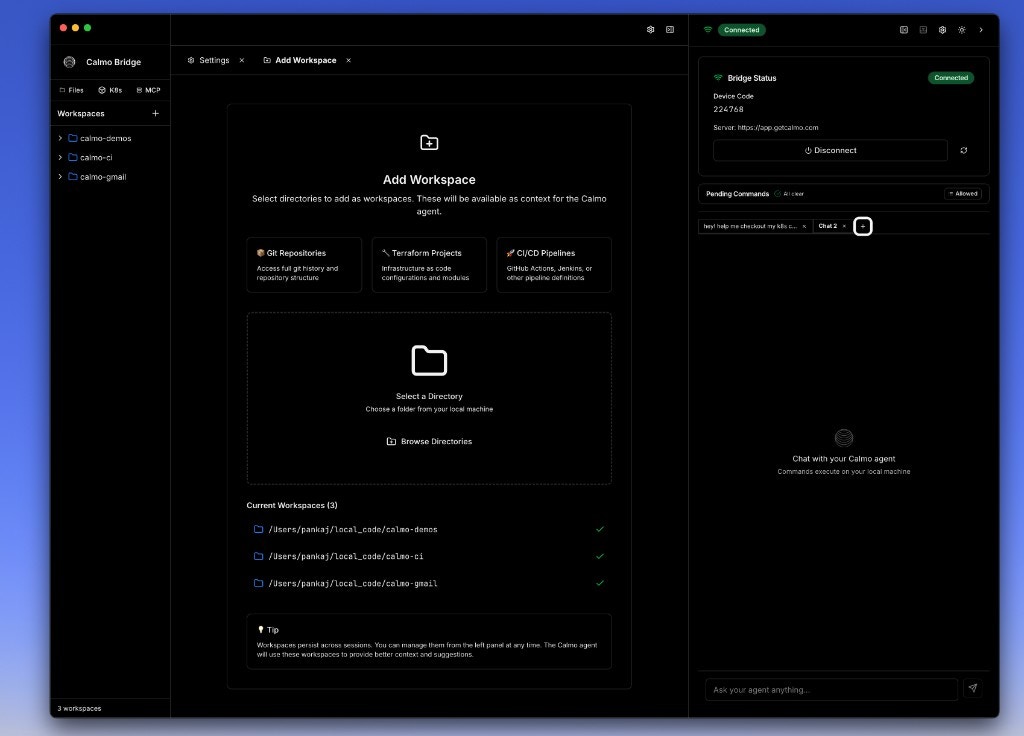 Click the **+** button next to "Workspaces" to open the Add Workspace dialog.
### Workspace Categories
Full git history and repository structure. Best for:
* Application codebases
* Monorepos
* Open source projects
Infrastructure as code configurations and modules. Best for:
* Cloud infrastructure
* Terraform workspaces
* IaC modules
GitHub Actions, Jenkins, or other pipeline definitions. Best for:
* Deployment configs
* Workflow definitions
* Build scripts
### Adding a Workspace
Click the **+** button in the Workspaces section of the left sidebar
Select a category that best describes your project:
* 🎨 Git Repositories
* 🏗️ Terraform Projects
* 🚀 CI/CD Pipelines
Or skip this and browse directly
Click **Browse Directories** and select the folder you want to add
The workspace appears in the "Current Workspaces" list with a checkmark. Close the dialog when done.
**Current Workspaces List:**
The bottom of the Add Workspace dialog shows all currently configured workspaces:
```
✓ /Users/pankaj/local_code/calmo-demos
✓ /Users/pankaj/local_code/calmo-ci
✓ /Users/pankaj/local_code/calmo-gmail
```
This helps you avoid adding the same directory twice.
## File Editor
### Opening and Editing Files
Click the **+** button next to "Workspaces" to open the Add Workspace dialog.
### Workspace Categories
Full git history and repository structure. Best for:
* Application codebases
* Monorepos
* Open source projects
Infrastructure as code configurations and modules. Best for:
* Cloud infrastructure
* Terraform workspaces
* IaC modules
GitHub Actions, Jenkins, or other pipeline definitions. Best for:
* Deployment configs
* Workflow definitions
* Build scripts
### Adding a Workspace
Click the **+** button in the Workspaces section of the left sidebar
Select a category that best describes your project:
* 🎨 Git Repositories
* 🏗️ Terraform Projects
* 🚀 CI/CD Pipelines
Or skip this and browse directly
Click **Browse Directories** and select the folder you want to add
The workspace appears in the "Current Workspaces" list with a checkmark. Close the dialog when done.
**Current Workspaces List:**
The bottom of the Add Workspace dialog shows all currently configured workspaces:
```
✓ /Users/pankaj/local_code/calmo-demos
✓ /Users/pankaj/local_code/calmo-ci
✓ /Users/pankaj/local_code/calmo-gmail
```
This helps you avoid adding the same directory twice.
## File Editor
### Opening and Editing Files
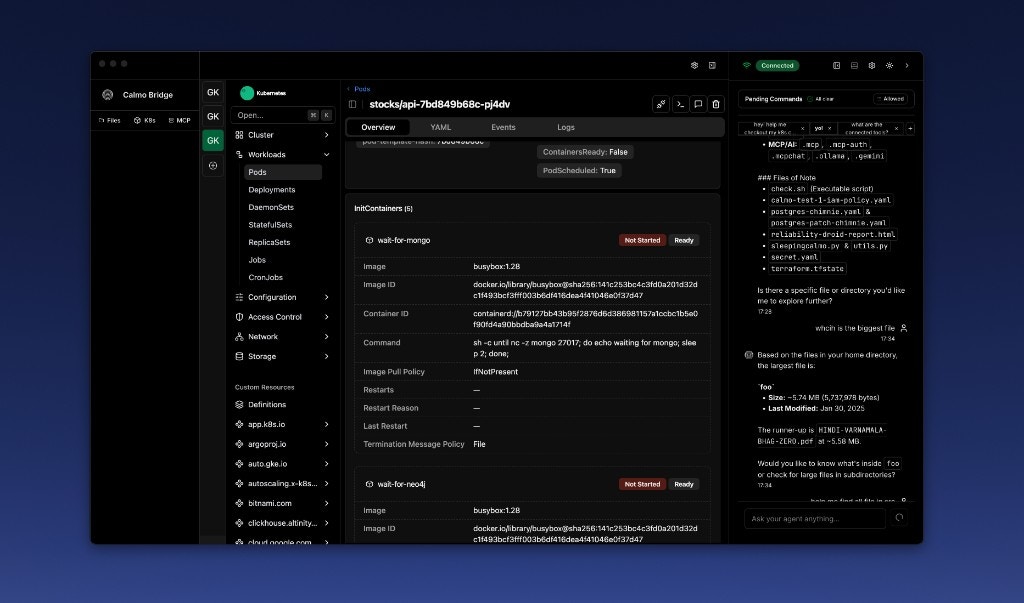 **Editor Features:**
* **Tabbed Interface** - Multiple files open in separate tabs
* **Syntax Highlighting** - Automatic language detection
* **Line Numbers** - For easy reference in conversations
* **Code Folding** - Collapse/expand code blocks
* **Find & Replace** - Cmd/Ctrl+F to search
* **Auto-Save** - Changes save automatically (or Cmd/Ctrl+S for manual save)
### Supported Languages
The editor provides syntax highlighting for:
* **Web**: JavaScript, TypeScript, HTML, CSS, React (JSX/TSX)
* **Backend**: Python, Go, Java, C#, Ruby, PHP
* **Config**: YAML, JSON, TOML, XML
* **Infrastructure**: Terraform (HCL), Dockerfile, Kubernetes manifests
* **Shell**: Bash, Zsh, PowerShell
* **Database**: SQL, GraphQL
* **Markdown**: README files, documentation
### Working with Tabs
| Action | Shortcut (macOS) | Shortcut (Windows/Linux) |
| ---------------- | --------------------------- | --------------------------- |
| **Close Tab** | Cmd+W | Ctrl+W |
| **Next Tab** | Cmd+Shift+] | Ctrl+Tab |
| **Previous Tab** | Cmd+Shift+\[ | Ctrl+Shift+Tab |
| **Close All** | Right-click tab → Close All | Right-click tab → Close All |
**Tab Indicators:**
* 📄 **filename.yaml** - File name in tab
* **×** - Close button
* **•** (dot) - Unsaved changes
* **Lock icon** - Read-only file
### Editing Workflow
**Typical Flow:**
1. **Browse** to find the file in the workspace tree
2. **Click** to open in the editor
3. **Edit** the file as needed
4. **Save** with Cmd/Ctrl+S (or auto-save kicks in)
5. **Ask Calmo** about the changes or run related commands
**Example:**
"I just updated the deployment.yaml. Can you apply it to the staging cluster?"
Calmo sees the file in your workspace and can reference it in commands.
## Integration with Chat
### File Context
When you have files open in the editor, Calmo can:
* **Reference file contents** in responses
* **Suggest edits** based on what you're working on
* **Generate commands** related to the open files
* **Understand project structure** from your workspace layout
**Example Conversation:**
```
You: "What does this kustomization.yaml do?"
[You have kustomization.yaml open in editor]
Calmo: "Looking at your kustomization.yaml (open in your editor),
it's configuring..."
```
### File Editing by Calmo
If Calmo suggests file changes and you approve:
* Changes are made to the file on disk
* If the file is open in your editor, it **refreshes automatically**
* You'll see the updated content
* Undo/redo history is preserved
Calmo can only edit files within configured workspaces. Files outside workspaces are read-only.
## Settings Panel
### Accessing Settings
The Settings panel appears in the right sidebar when you click the settings icon:
**Editor Features:**
* **Tabbed Interface** - Multiple files open in separate tabs
* **Syntax Highlighting** - Automatic language detection
* **Line Numbers** - For easy reference in conversations
* **Code Folding** - Collapse/expand code blocks
* **Find & Replace** - Cmd/Ctrl+F to search
* **Auto-Save** - Changes save automatically (or Cmd/Ctrl+S for manual save)
### Supported Languages
The editor provides syntax highlighting for:
* **Web**: JavaScript, TypeScript, HTML, CSS, React (JSX/TSX)
* **Backend**: Python, Go, Java, C#, Ruby, PHP
* **Config**: YAML, JSON, TOML, XML
* **Infrastructure**: Terraform (HCL), Dockerfile, Kubernetes manifests
* **Shell**: Bash, Zsh, PowerShell
* **Database**: SQL, GraphQL
* **Markdown**: README files, documentation
### Working with Tabs
| Action | Shortcut (macOS) | Shortcut (Windows/Linux) |
| ---------------- | --------------------------- | --------------------------- |
| **Close Tab** | Cmd+W | Ctrl+W |
| **Next Tab** | Cmd+Shift+] | Ctrl+Tab |
| **Previous Tab** | Cmd+Shift+\[ | Ctrl+Shift+Tab |
| **Close All** | Right-click tab → Close All | Right-click tab → Close All |
**Tab Indicators:**
* 📄 **filename.yaml** - File name in tab
* **×** - Close button
* **•** (dot) - Unsaved changes
* **Lock icon** - Read-only file
### Editing Workflow
**Typical Flow:**
1. **Browse** to find the file in the workspace tree
2. **Click** to open in the editor
3. **Edit** the file as needed
4. **Save** with Cmd/Ctrl+S (or auto-save kicks in)
5. **Ask Calmo** about the changes or run related commands
**Example:**
"I just updated the deployment.yaml. Can you apply it to the staging cluster?"
Calmo sees the file in your workspace and can reference it in commands.
## Integration with Chat
### File Context
When you have files open in the editor, Calmo can:
* **Reference file contents** in responses
* **Suggest edits** based on what you're working on
* **Generate commands** related to the open files
* **Understand project structure** from your workspace layout
**Example Conversation:**
```
You: "What does this kustomization.yaml do?"
[You have kustomization.yaml open in editor]
Calmo: "Looking at your kustomization.yaml (open in your editor),
it's configuring..."
```
### File Editing by Calmo
If Calmo suggests file changes and you approve:
* Changes are made to the file on disk
* If the file is open in your editor, it **refreshes automatically**
* You'll see the updated content
* Undo/redo history is preserved
Calmo can only edit files within configured workspaces. Files outside workspaces are read-only.
## Settings Panel
### Accessing Settings
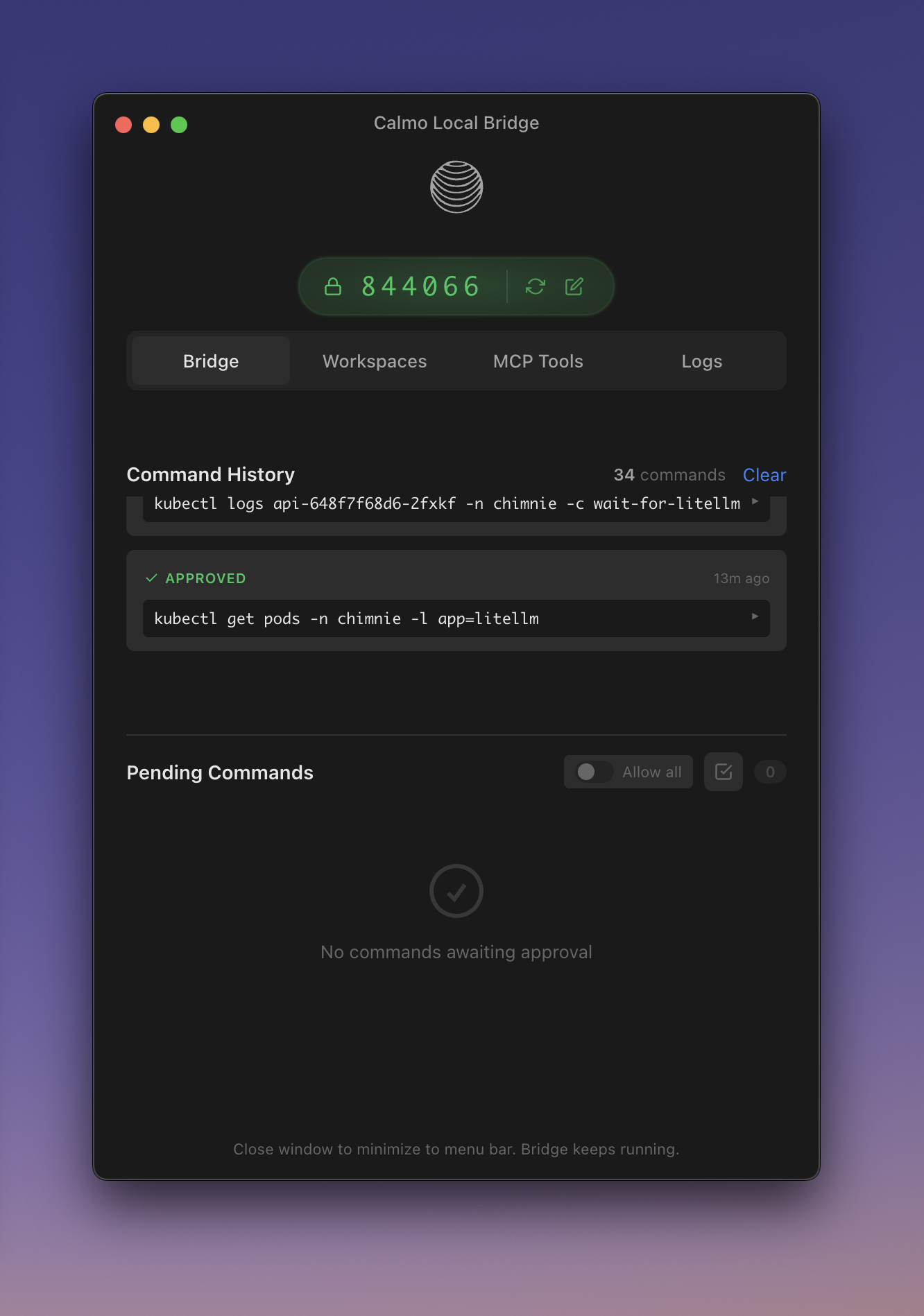
The Settings panel appears in the right sidebar when you click the settings icon:
 ### Bridge Status
**Information Displayed:**
* **Bridge Status** - Connection state (Connected/Disconnected)
* **Device Code** - Your unique device identifier (e.g., 224768)
* **Server URL** - The Calmo server you're connected to ([https://app.getcalmo.com](https://app.getcalmo.com))
* **Disconnect Button** - Unpair the device
**Status Indicators:**
* 🟢 **Connected** - Active connection to Calmo
* 🟡 **Connecting** - Attempting to connect
* 🔴 **Disconnected** - No active connection
* 🟠 **Waiting for Code** - Ready to pair
### Pending Commands Summary
The settings panel also shows a summary of pending commands:
```
Pending Commands 🔔 All clear ✅ Allowed
```
* **All clear** - No commands waiting for approval
* **N commands in queue** - Commands awaiting your review
* **Allowed** - Auto-approval is active for some patterns
Click to jump to the Command Approval panel.
## MCP Servers Panel
### Server List
The MCP Servers section (below Workspaces in left sidebar) shows all configured servers:
**Display Format:**
```
🔌 MCP Servers ↻
Servers: 6 Tools: 64
> 🟢 ArgoCD Offline 60mp
> 🟢 context7 2
> ⚪ GitHub Offline 51
> ⚪ Kubernetes Offline 5emp
> 🟢 mastra 10
> 🟢 sequential-thinking 1
```
**Information Shown:**
* **Server name** - Configured identifier (e.g., ArgoCD, context7, GitHub)
* **Connection status** - Green dot (🟢) = connected, Gray dot (⚪) = offline/disconnected
* **Tool count** - Number of tools provided (e.g., "2", "51", "60mp")
* **Status labels** - "Offline" shown for disconnected servers
* **Type badge** - (http) or (stdio) when expanded
### Server Details
Click on any server to view its detail panel:
### Bridge Status
**Information Displayed:**
* **Bridge Status** - Connection state (Connected/Disconnected)
* **Device Code** - Your unique device identifier (e.g., 224768)
* **Server URL** - The Calmo server you're connected to ([https://app.getcalmo.com](https://app.getcalmo.com))
* **Disconnect Button** - Unpair the device
**Status Indicators:**
* 🟢 **Connected** - Active connection to Calmo
* 🟡 **Connecting** - Attempting to connect
* 🔴 **Disconnected** - No active connection
* 🟠 **Waiting for Code** - Ready to pair
### Pending Commands Summary
The settings panel also shows a summary of pending commands:
```
Pending Commands 🔔 All clear ✅ Allowed
```
* **All clear** - No commands waiting for approval
* **N commands in queue** - Commands awaiting your review
* **Allowed** - Auto-approval is active for some patterns
Click to jump to the Command Approval panel.
## MCP Servers Panel
### Server List
The MCP Servers section (below Workspaces in left sidebar) shows all configured servers:
**Display Format:**
```
🔌 MCP Servers ↻
Servers: 6 Tools: 64
> 🟢 ArgoCD Offline 60mp
> 🟢 context7 2
> ⚪ GitHub Offline 51
> ⚪ Kubernetes Offline 5emp
> 🟢 mastra 10
> 🟢 sequential-thinking 1
```
**Information Shown:**
* **Server name** - Configured identifier (e.g., ArgoCD, context7, GitHub)
* **Connection status** - Green dot (🟢) = connected, Gray dot (⚪) = offline/disconnected
* **Tool count** - Number of tools provided (e.g., "2", "51", "60mp")
* **Status labels** - "Offline" shown for disconnected servers
* **Type badge** - (http) or (stdio) when expanded
### Server Details
Click on any server to view its detail panel:
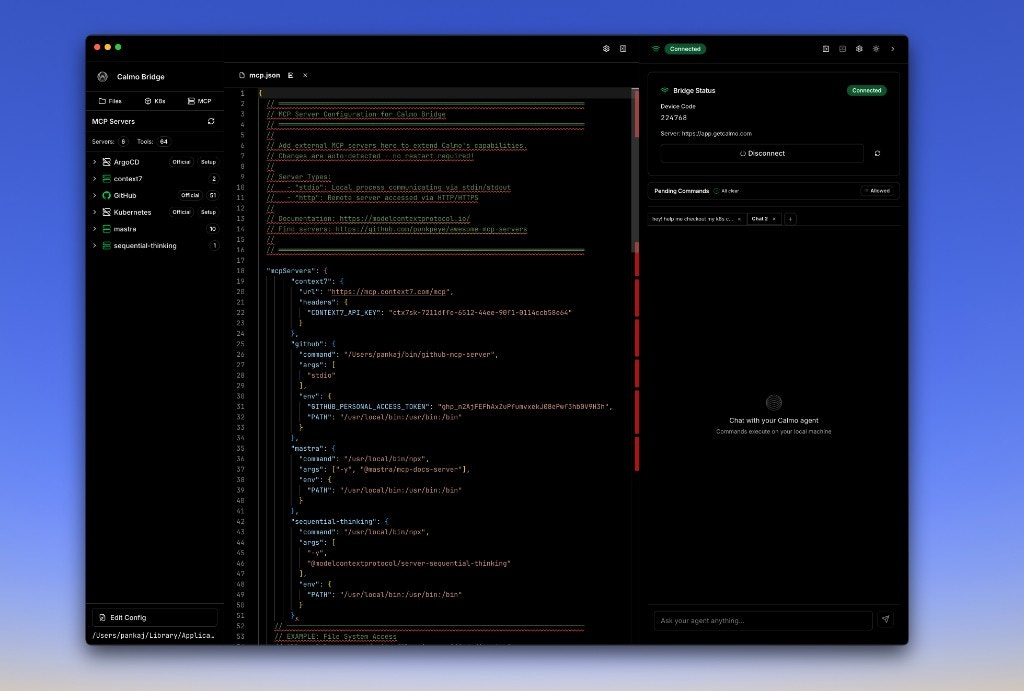 **Detail Panel Contents:**
**Server Information:**
* **Type** - http or stdio
* **Status** - Connected/Disconnected/Error
* **Tools Available** - Count and expandable list
**Available Tools:**
* "2 tools provided by this server" (expandable)
* Click to see tool names and descriptions
**Action Buttons:**
* **Reload Server** - Restart the server connection
* **Edit Config** - Open mcp.json in the editor
### Managing Servers
**Reload a Server:**
1. Click the server in the list
2. Click **Reload Server** button
3. Wait for reconnection
**Edit Configuration:**
1. Click **Edit Config** (either in server detail or bottom of MCP panel)
2. The `mcp.json` file opens in the editor
3. Make changes
4. Save the file
5. Servers auto-reload when config changes
**Refresh All Servers:**
* Click the **↻** refresh icon next to "MCP Servers"
* All servers will reconnect
## Workspace Best Practices
### Organization
**Do:**
* ✅ Add specific project directories
* ✅ Use workspace categories appropriately
* ✅ Keep workspace count manageable (\< 10 is ideal)
* ✅ Remove workspaces when projects are archived
**Don't:**
* ❌ Add your entire home directory
* ❌ Add system directories like `/etc` or `/var`
* ❌ Duplicate workspaces (same directory added twice)
* ❌ Add unrelated files to project directories
### File Editing
**Tips:**
* **Save frequently** - Even with auto-save, Cmd/Ctrl+S is a good habit
* **Review changes** - Before asking Calmo to deploy, review your edits
* **Use version control** - Keep files in git; the editor doesn't have undo history across sessions
* **Test locally** - Edit → Save → Test before deploying
**When to Edit in Bridge IDE vs. Full IDE:**
**Use Bridge IDE editor for:**
* Quick config tweaks
* Viewing files during chat
* Small changes suggested by Calmo
* Files you want to reference in conversation
**Use your full IDE for:**
* Large refactorings
* Complex multi-file changes
* Debugging sessions
* Long coding sessions
The Bridge IDE editor is designed for quick edits and AI collaboration, not as a full IDE replacement.
## Keyboard Shortcuts
### File Browser
| Action | macOS | Windows/Linux |
| -------------------------- | ------------ | ------------- |
| **Expand/Collapse Folder** | Click or →/← | Click or →/← |
| **Navigate** | ↑/↓ | ↑/↓ |
| **Open File** | Enter | Enter |
| **Add Workspace** | Cmd+Shift+O | Ctrl+Shift+O |
### Editor
| Action | macOS | Windows/Linux |
| ---------------- | ----- | ------------- |
| **Save** | Cmd+S | Ctrl+S |
| **Find** | Cmd+F | Ctrl+F |
| **Replace** | Cmd+H | Ctrl+H |
| **Go to Line** | Cmd+G | Ctrl+G |
| **Comment Line** | Cmd+/ | Ctrl+/ |
| **Close Tab** | Cmd+W | Ctrl+W |
## Troubleshooting
### Workspace Not Appearing
If a workspace doesn't show in the sidebar after adding:
1. **Check permissions** - Ensure the directory is readable
2. **Refresh** - Close and reopen the bridge IDE
3. **Verify path** - Confirm the directory exists at the path you added
4. **Check logs** - Look for errors in the Activity Log
### Files Not Opening
If clicking a file doesn't open it:
1. **Check file size** - Very large files (> 10MB) may not open
2. **Binary files** - Non-text files show a preview instead of opening
3. **Permissions** - Ensure you have read access to the file
### Editor Changes Not Saving
If edits aren't persisting:
1. **Check write permissions** - Ensure the file isn't read-only
2. **Save manually** - Try Cmd/Ctrl+S
3. **Check disk space** - Ensure you have free space
4. **Restart bridge IDE** - Close and reopen the application
### MCP Server Won't Connect
If a server shows disconnected:
1. **Check config** - Open mcp.json and verify syntax
2. **Reload server** - Use the Reload Server button
3. **Check logs** - Look for error messages in Activity Log
4. **Verify command** - For stdio servers, ensure the command exists
## Next Steps
Learn about executing commands and using the integrated terminal
Detailed guide to configuring and managing MCP servers
Workflow tips for using the integrated environment effectively
Solutions to common workspace and editor issues
***
*For assistance with workspace management, contact our support team at [support@getcalmo.com](mailto:support@getcalmo.com).*
**Detail Panel Contents:**
**Server Information:**
* **Type** - http or stdio
* **Status** - Connected/Disconnected/Error
* **Tools Available** - Count and expandable list
**Available Tools:**
* "2 tools provided by this server" (expandable)
* Click to see tool names and descriptions
**Action Buttons:**
* **Reload Server** - Restart the server connection
* **Edit Config** - Open mcp.json in the editor
### Managing Servers
**Reload a Server:**
1. Click the server in the list
2. Click **Reload Server** button
3. Wait for reconnection
**Edit Configuration:**
1. Click **Edit Config** (either in server detail or bottom of MCP panel)
2. The `mcp.json` file opens in the editor
3. Make changes
4. Save the file
5. Servers auto-reload when config changes
**Refresh All Servers:**
* Click the **↻** refresh icon next to "MCP Servers"
* All servers will reconnect
## Workspace Best Practices
### Organization
**Do:**
* ✅ Add specific project directories
* ✅ Use workspace categories appropriately
* ✅ Keep workspace count manageable (\< 10 is ideal)
* ✅ Remove workspaces when projects are archived
**Don't:**
* ❌ Add your entire home directory
* ❌ Add system directories like `/etc` or `/var`
* ❌ Duplicate workspaces (same directory added twice)
* ❌ Add unrelated files to project directories
### File Editing
**Tips:**
* **Save frequently** - Even with auto-save, Cmd/Ctrl+S is a good habit
* **Review changes** - Before asking Calmo to deploy, review your edits
* **Use version control** - Keep files in git; the editor doesn't have undo history across sessions
* **Test locally** - Edit → Save → Test before deploying
**When to Edit in Bridge IDE vs. Full IDE:**
**Use Bridge IDE editor for:**
* Quick config tweaks
* Viewing files during chat
* Small changes suggested by Calmo
* Files you want to reference in conversation
**Use your full IDE for:**
* Large refactorings
* Complex multi-file changes
* Debugging sessions
* Long coding sessions
The Bridge IDE editor is designed for quick edits and AI collaboration, not as a full IDE replacement.
## Keyboard Shortcuts
### File Browser
| Action | macOS | Windows/Linux |
| -------------------------- | ------------ | ------------- |
| **Expand/Collapse Folder** | Click or →/← | Click or →/← |
| **Navigate** | ↑/↓ | ↑/↓ |
| **Open File** | Enter | Enter |
| **Add Workspace** | Cmd+Shift+O | Ctrl+Shift+O |
### Editor
| Action | macOS | Windows/Linux |
| ---------------- | ----- | ------------- |
| **Save** | Cmd+S | Ctrl+S |
| **Find** | Cmd+F | Ctrl+F |
| **Replace** | Cmd+H | Ctrl+H |
| **Go to Line** | Cmd+G | Ctrl+G |
| **Comment Line** | Cmd+/ | Ctrl+/ |
| **Close Tab** | Cmd+W | Ctrl+W |
## Troubleshooting
### Workspace Not Appearing
If a workspace doesn't show in the sidebar after adding:
1. **Check permissions** - Ensure the directory is readable
2. **Refresh** - Close and reopen the bridge IDE
3. **Verify path** - Confirm the directory exists at the path you added
4. **Check logs** - Look for errors in the Activity Log
### Files Not Opening
If clicking a file doesn't open it:
1. **Check file size** - Very large files (> 10MB) may not open
2. **Binary files** - Non-text files show a preview instead of opening
3. **Permissions** - Ensure you have read access to the file
### Editor Changes Not Saving
If edits aren't persisting:
1. **Check write permissions** - Ensure the file isn't read-only
2. **Save manually** - Try Cmd/Ctrl+S
3. **Check disk space** - Ensure you have free space
4. **Restart bridge IDE** - Close and reopen the application
### MCP Server Won't Connect
If a server shows disconnected:
1. **Check config** - Open mcp.json and verify syntax
2. **Reload server** - Use the Reload Server button
3. **Check logs** - Look for error messages in Activity Log
4. **Verify command** - For stdio servers, ensure the command exists
## Next Steps
Learn about executing commands and using the integrated terminal
Detailed guide to configuring and managing MCP servers
Workflow tips for using the integrated environment effectively
Solutions to common workspace and editor issues
***
*For assistance with workspace management, contact our support team at [support@getcalmo.com](mailto:support@getcalmo.com).*