> ## Documentation Index
> Fetch the complete documentation index at: https://docs.getcalmo.com/llms.txt
> Use this file to discover all available pages before exploring further.
# Calmo Bridge IDE
> The AI-Native IDE for SREs that brings Calmo AI directly into your local development environment with integrated terminal, file editing, and chat
# Calmo Bridge IDE
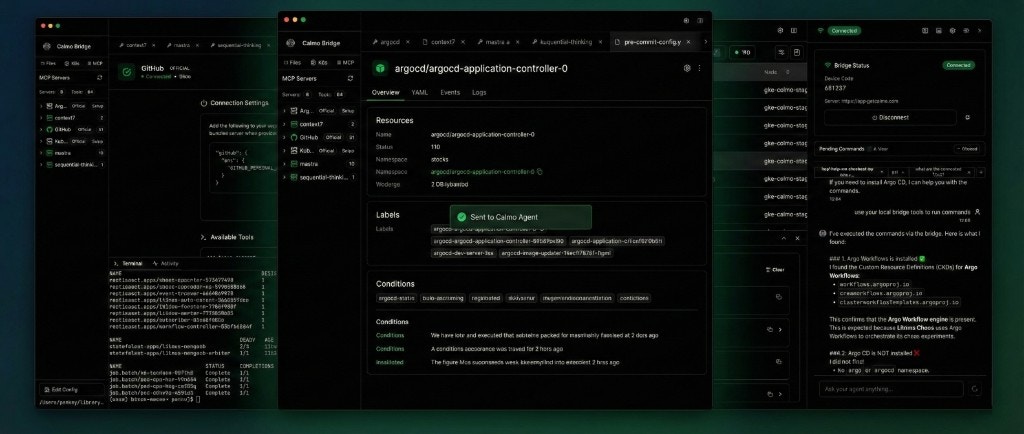
Calmo Bridge IDE is an AI-native integrated development environment designed specifically for SREs that connects your local machine to the Calmo AI platform. It combines a powerful terminal, file browser, code editor, and AI chat interface in one seamless workspace—enabling you to collaborate with AI agents while maintaining complete control over your local environment.
## Overview
The Calmo Bridge IDE transforms how you interact with Kubernetes and cloud infrastructure by providing a complete AI-powered development environment with:
* **Integrated Terminal** - Execute commands with real-time output streaming and shell integration
* **File Browser & Editor** - Navigate and edit workspace files with syntax highlighting
* **Side-by-Side Chat** - Converse with Calmo AI without leaving your development environment
* **Human-in-the-Loop Approval** - Review and approve commands before they execute
* **MCP Server Integration** - Extend Calmo's capabilities with Model Context Protocol servers
* **Visual Workspace Management** - Organize projects with categorized workspace types
 ## Key Features
Real-time command execution with shell integration. See output as it happens, with full support for colors, progress bars, and interactive commands.
Navigate your workspace files in a tree view. Open, edit, and save files with syntax highlighting—all within the Bridge.
Review every command before it runs. Deny risky operations or set up auto-approve patterns for trusted commands.
Chat with Calmo while viewing terminal output and editing files. No context switching between windows.
Connect external MCP servers for documentation lookup, sequential thinking, and specialized tools.
Track all commands, view execution history, and monitor real-time bridge activity in dedicated panels.
## System Requirements
| Platform | Supported |
| ----------- | ----------------------------------- |
| **macOS** | ✅ macOS 11+ (Intel & Apple Silicon) |
| **Windows** | ✅ Windows 10/11 |
| **Linux** | ✅ Ubuntu & CentOS |
**Browser Compatibility:**
* Chrome, Firefox, Edge (recommended)
* Safari and Brave have limited support
## Installation
Download the latest version from [app.getcalmo.com/integrations/bridge](https://app.getcalmo.com/integrations/bridge) or click **Connect Local Bridge** in any chat.
**macOS:**
* Open the downloaded `.dmg` file
* Drag Calmo Bridge IDE to your Applications folder
* Launch from Applications or Spotlight
* If prompted about an unidentified developer, go to System Preferences → Security & Privacy → Open Anyway
**Windows:**
* Run the downloaded installer
* Follow the installation wizard
* Launch from Start Menu
**Linux:**
* Extract the downloaded package
* Run the installer script or AppImage
* Launch from applications menu
On first launch, you'll see a 4-step welcome wizard that guides you through:
* Connecting to Calmo
* Setting up workspaces
* Configuring MCP servers (optional)
You can skip steps and configure them later from Settings.
## Welcome Wizard
The first time you launch Calmo Bridge IDE, a welcome screen introduces the key features:
## Key Features
Real-time command execution with shell integration. See output as it happens, with full support for colors, progress bars, and interactive commands.
Navigate your workspace files in a tree view. Open, edit, and save files with syntax highlighting—all within the Bridge.
Review every command before it runs. Deny risky operations or set up auto-approve patterns for trusted commands.
Chat with Calmo while viewing terminal output and editing files. No context switching between windows.
Connect external MCP servers for documentation lookup, sequential thinking, and specialized tools.
Track all commands, view execution history, and monitor real-time bridge activity in dedicated panels.
## System Requirements
| Platform | Supported |
| ----------- | ----------------------------------- |
| **macOS** | ✅ macOS 11+ (Intel & Apple Silicon) |
| **Windows** | ✅ Windows 10/11 |
| **Linux** | ✅ Ubuntu & CentOS |
**Browser Compatibility:**
* Chrome, Firefox, Edge (recommended)
* Safari and Brave have limited support
## Installation
Download the latest version from [app.getcalmo.com/integrations/bridge](https://app.getcalmo.com/integrations/bridge) or click **Connect Local Bridge** in any chat.
**macOS:**
* Open the downloaded `.dmg` file
* Drag Calmo Bridge IDE to your Applications folder
* Launch from Applications or Spotlight
* If prompted about an unidentified developer, go to System Preferences → Security & Privacy → Open Anyway
**Windows:**
* Run the downloaded installer
* Follow the installation wizard
* Launch from Start Menu
**Linux:**
* Extract the downloaded package
* Run the installer script or AppImage
* Launch from applications menu
On first launch, you'll see a 4-step welcome wizard that guides you through:
* Connecting to Calmo
* Setting up workspaces
* Configuring MCP servers (optional)
You can skip steps and configure them later from Settings.
## Welcome Wizard
The first time you launch Calmo Bridge IDE, a welcome screen introduces the key features:
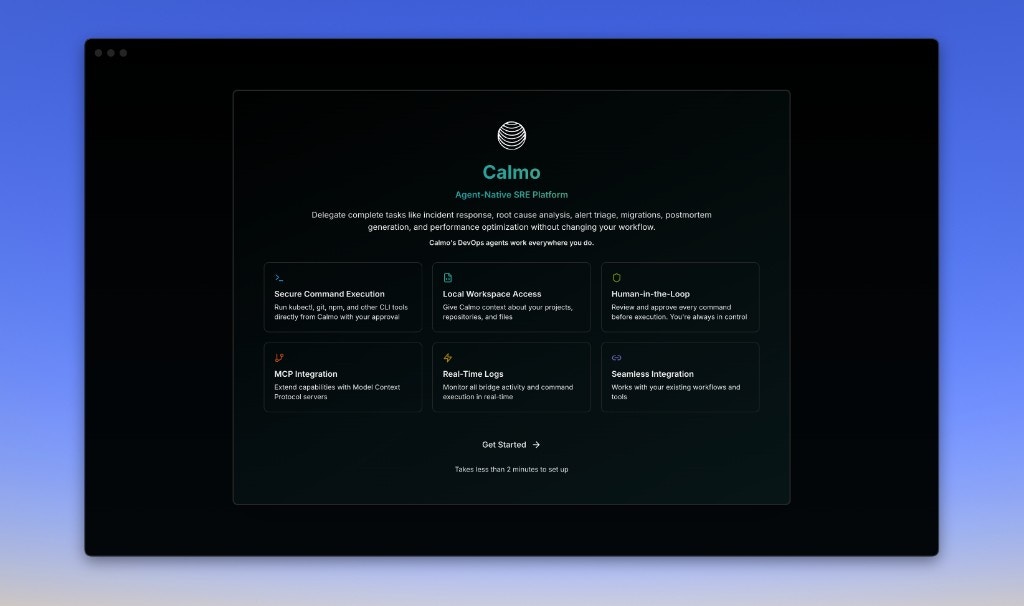 The welcome screen highlights:
* **Secure Command Execution** - Run kubectl, git, npm, and other CLI tools directly from Calmo with your approval
* **Local Workspace Access** - Give Calmo context about your projects, repositories, and files
* **Human-in-the-Loop** - Review and approve every command before execution. You're always in control
* **MCP Integration** - Extend capabilities with Model Context Protocol servers
* **Real-Time Logs** - Monitor bridge activity and command execution in real-time
* **Seamless Integration** - Works with your existing workflows and tools
Click **Get Started** to begin the setup wizard, which guides you through:
* Connecting to Calmo (pairing)
* Setting up workspaces
* Configuring MCP servers (optional)
You can skip steps and configure them later from Settings.
## Main Interface
Once connected, Calmo Bridge IDE provides a three-panel workspace:
### Layout Overview
```
┌─────────────────────────────────────────────────────────────┐
│ ⚙️ 📱 Calmo Bridge IDE 🟢 Connected │
├──────────┬──────────────────────────┬────────────────────────┤
│ │ │ │
│ 📁 │ 📄 file.yaml × │ 💬 Chat │
│ Work- │ ┌────────────────────┐ │ ┌──────────────────┐ │
│ spaces │ │ │ │ │ │ │
│ │ │ File Editor │ │ │ Agent Output │ │
│ ├─ proj │ │ (Syntax │ │ │ │ │
│ ├─ repo │ │ Highlighting) │ │ └──────────────────┘ │
│ │ │ │ │ │
│ 🔌 MCP │ └────────────────────┘ │ ⚠️ Command Approval │
│ Servers │ ────────────────────── │ ┌──────────────────┐ │
│ │ ▼ Terminal ▼ Activity │ │ kubectl get pods │ │
│ ├ ctx7 │ ┌────────────────────┐ │ │ [Deny] [Allow] │ │
│ ├ github│ │ $ command output │ │ └──────────────────┘ │
│ │ │ ✓ Command complete │ │ │
└──────────┴──────────────────────────┴────────────────────────┘
```
### Left Sidebar: Navigation
**Workspaces Section:**
* Expandable tree view of your local projects
* File and folder icons
* Quick navigation to any workspace file
* **+ button** to add new workspaces
**MCP Servers Section:**
* List of connected MCP servers
* Server type badges (http/stdio)
* Tool count for each server
* Click to view server details
* **Edit Config** button to modify configuration
### Center Panel: Editor & Terminal
**File Editor (Top):**
* Tabbed interface for multiple open files
* Syntax highlighting for all major languages
* Line numbers and code folding
* Edit workspace files directly
**Terminal & Activity (Bottom):**
* **Terminal tab** - Real-time command output with shell prompt
* **Activity tab** - Command history with execution status
* Resizable split view
* Command completion indicators
### Right Sidebar: Chat & Status
**Chat Interface:**
* Full conversation with Calmo AI
* Message history with timestamps
* Input field for new messages
* Context indicators showing what Calmo can see
**Command Approval Panel:**
* Pending commands awaiting approval
* Risk level badges (LOW RISK, MEDIUM, HIGH)
* Three action buttons: Deny, Always, Allow
* Command queue counter
**Bridge Status:**
* Connection status indicator (green = connected)
* Device code display
* Server URL
* Disconnect button
* Settings access
## Pairing Your Device
After installation, pair your bridge with your Calmo account:
In your Calmo chat, click the device selector and select **Generate Pairing Code**. A 6-digit code will appear.
In the Calmo Bridge IDE app, you'll see a pairing modal with:
* **6 empty digit boxes** for entering the pairing code
* **"Open Pairing Page"** link - Opens the Calmo integration page if you need to generate a code
* **Bridge Status** - Shows "Initializing..." then "Waiting for Code"
* **Cancel** button - Dismiss the pairing modal
Enter the 6-digit code from the web interface.
The welcome screen highlights:
* **Secure Command Execution** - Run kubectl, git, npm, and other CLI tools directly from Calmo with your approval
* **Local Workspace Access** - Give Calmo context about your projects, repositories, and files
* **Human-in-the-Loop** - Review and approve every command before execution. You're always in control
* **MCP Integration** - Extend capabilities with Model Context Protocol servers
* **Real-Time Logs** - Monitor bridge activity and command execution in real-time
* **Seamless Integration** - Works with your existing workflows and tools
Click **Get Started** to begin the setup wizard, which guides you through:
* Connecting to Calmo (pairing)
* Setting up workspaces
* Configuring MCP servers (optional)
You can skip steps and configure them later from Settings.
## Main Interface
Once connected, Calmo Bridge IDE provides a three-panel workspace:
### Layout Overview
```
┌─────────────────────────────────────────────────────────────┐
│ ⚙️ 📱 Calmo Bridge IDE 🟢 Connected │
├──────────┬──────────────────────────┬────────────────────────┤
│ │ │ │
│ 📁 │ 📄 file.yaml × │ 💬 Chat │
│ Work- │ ┌────────────────────┐ │ ┌──────────────────┐ │
│ spaces │ │ │ │ │ │ │
│ │ │ File Editor │ │ │ Agent Output │ │
│ ├─ proj │ │ (Syntax │ │ │ │ │
│ ├─ repo │ │ Highlighting) │ │ └──────────────────┘ │
│ │ │ │ │ │
│ 🔌 MCP │ └────────────────────┘ │ ⚠️ Command Approval │
│ Servers │ ────────────────────── │ ┌──────────────────┐ │
│ │ ▼ Terminal ▼ Activity │ │ kubectl get pods │ │
│ ├ ctx7 │ ┌────────────────────┐ │ │ [Deny] [Allow] │ │
│ ├ github│ │ $ command output │ │ └──────────────────┘ │
│ │ │ ✓ Command complete │ │ │
└──────────┴──────────────────────────┴────────────────────────┘
```
### Left Sidebar: Navigation
**Workspaces Section:**
* Expandable tree view of your local projects
* File and folder icons
* Quick navigation to any workspace file
* **+ button** to add new workspaces
**MCP Servers Section:**
* List of connected MCP servers
* Server type badges (http/stdio)
* Tool count for each server
* Click to view server details
* **Edit Config** button to modify configuration
### Center Panel: Editor & Terminal
**File Editor (Top):**
* Tabbed interface for multiple open files
* Syntax highlighting for all major languages
* Line numbers and code folding
* Edit workspace files directly
**Terminal & Activity (Bottom):**
* **Terminal tab** - Real-time command output with shell prompt
* **Activity tab** - Command history with execution status
* Resizable split view
* Command completion indicators
### Right Sidebar: Chat & Status
**Chat Interface:**
* Full conversation with Calmo AI
* Message history with timestamps
* Input field for new messages
* Context indicators showing what Calmo can see
**Command Approval Panel:**
* Pending commands awaiting approval
* Risk level badges (LOW RISK, MEDIUM, HIGH)
* Three action buttons: Deny, Always, Allow
* Command queue counter
**Bridge Status:**
* Connection status indicator (green = connected)
* Device code display
* Server URL
* Disconnect button
* Settings access
## Pairing Your Device
After installation, pair your bridge with your Calmo account:
In your Calmo chat, click the device selector and select **Generate Pairing Code**. A 6-digit code will appear.
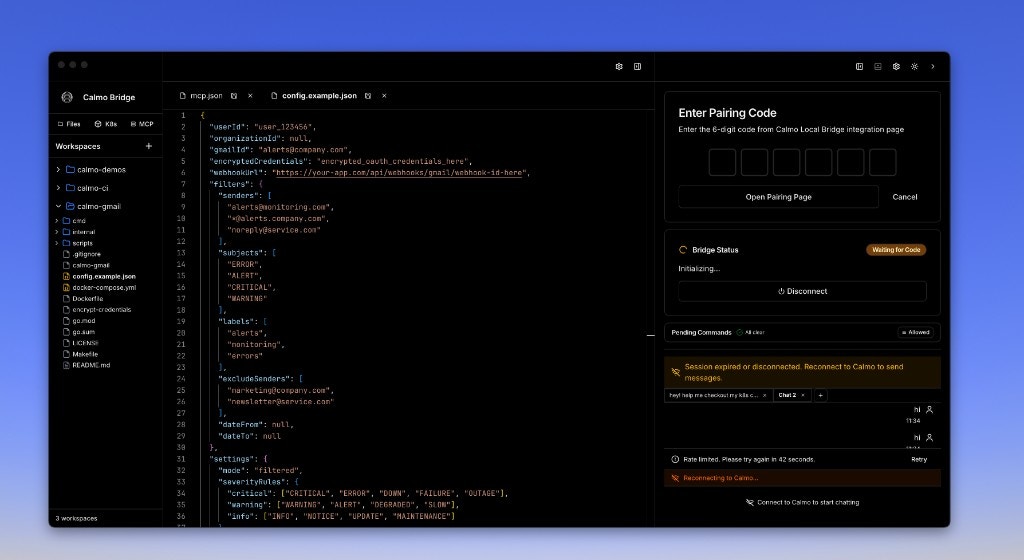
In the Calmo Bridge IDE app, you'll see a pairing modal with:
* **6 empty digit boxes** for entering the pairing code
* **"Open Pairing Page"** link - Opens the Calmo integration page if you need to generate a code
* **Bridge Status** - Shows "Initializing..." then "Waiting for Code"
* **Cancel** button - Dismiss the pairing modal
Enter the 6-digit code from the web interface.
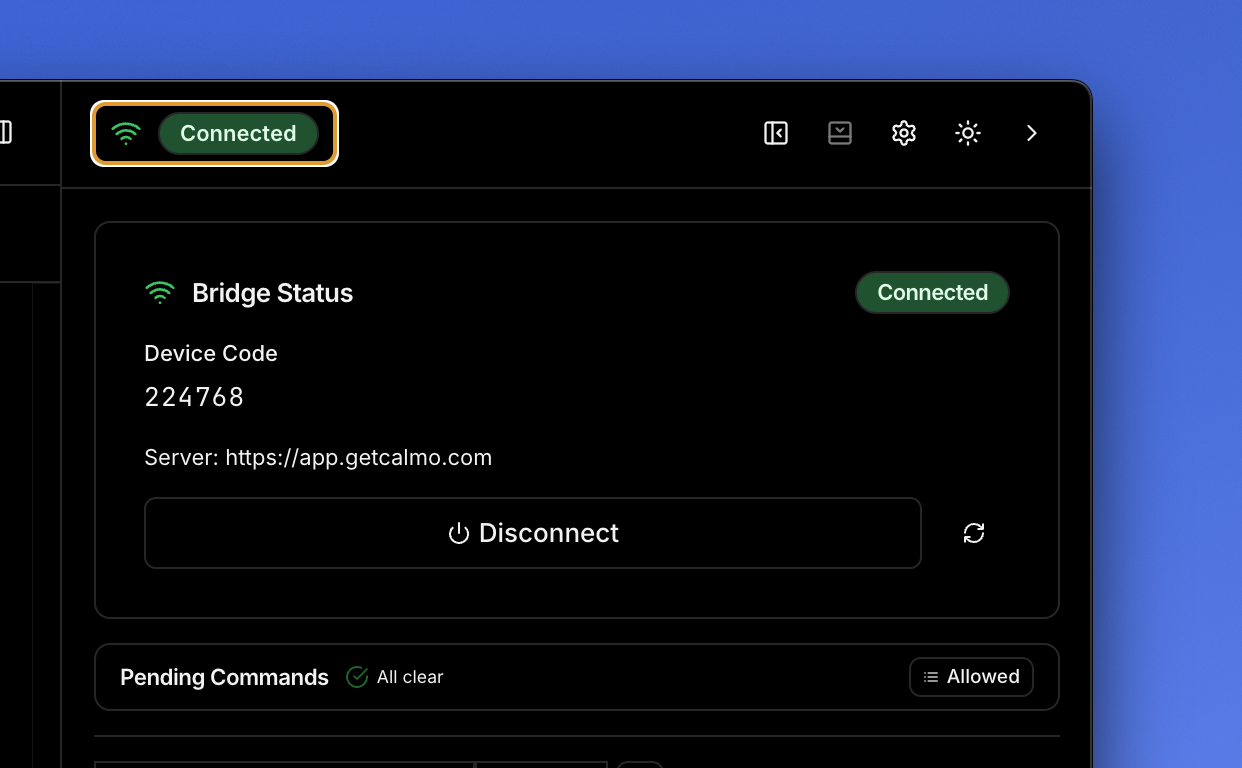
 Once paired, the Bridge Status panel displays:
* 🟢 Green **Connected** status badge at the top
* **Device Code** - Your unique identifier (e.g., 224768)
* **Server URL** - [https://app.getcalmo.com](https://app.getcalmo.com)
* **Disconnect** button to unpair the device
* **Pending Commands** section showing "All clear" with "Allowed" badge
The web interface will also show your device as connected, and you can now use all Calmo Bridge IDE features in your Calmo chats.
Once paired, the Bridge Status panel displays:
* 🟢 Green **Connected** status badge at the top
* **Device Code** - Your unique identifier (e.g., 224768)
* **Server URL** - [https://app.getcalmo.com](https://app.getcalmo.com)
* **Disconnect** button to unpair the device
* **Pending Commands** section showing "All clear" with "Allowed" badge
The web interface will also show your device as connected, and you can now use all Calmo Bridge IDE features in your Calmo chats.
 Pairing codes expire after **10 minutes**. If it expires, generate a new code from the web interface.
## Using the Integrated Workspace
The power of Calmo Bridge IDE comes from its integrated environment. Here's a typical workflow:
### Workflow Example: Debugging a Kubernetes Issue
1. **Chat with Calmo** (right panel): "Hey, check what pods are failing in the staging namespace"
2. **Approve Command** (Command Approval panel):
```
kubectl get pods -n staging
```
Click **Allow** to execute
3. **View Output** (Terminal panel):
```
NAME READY STATUS RESTARTS
api-server-7d4f8b-x9k2p 0/1 CrashLoopBackOff 5
```
4. **Continue Conversation** (Chat): "Show me the logs for that api-server pod"
5. **Approve** → See logs in terminal → **Continue debugging**
All without leaving the Bridge IDE window or switching between applications.
### Working with Files
1. **Browse** workspace files in the left sidebar
2. **Click** a file to open it in the editor
3. **Ask Calmo** about the file: "What does this configuration do?"
4. **Edit** the file directly if needed
5. **Save** changes with Cmd/Ctrl+S
Calmo can reference open files in your conversation, providing context-aware assistance.
## Managing Workspaces
Workspaces give Calmo context about your local projects.
### Adding a Workspace
Click the **+** button in the Workspaces section:
Pairing codes expire after **10 minutes**. If it expires, generate a new code from the web interface.
## Using the Integrated Workspace
The power of Calmo Bridge IDE comes from its integrated environment. Here's a typical workflow:
### Workflow Example: Debugging a Kubernetes Issue
1. **Chat with Calmo** (right panel): "Hey, check what pods are failing in the staging namespace"
2. **Approve Command** (Command Approval panel):
```
kubectl get pods -n staging
```
Click **Allow** to execute
3. **View Output** (Terminal panel):
```
NAME READY STATUS RESTARTS
api-server-7d4f8b-x9k2p 0/1 CrashLoopBackOff 5
```
4. **Continue Conversation** (Chat): "Show me the logs for that api-server pod"
5. **Approve** → See logs in terminal → **Continue debugging**
All without leaving the Bridge IDE window or switching between applications.
### Working with Files
1. **Browse** workspace files in the left sidebar
2. **Click** a file to open it in the editor
3. **Ask Calmo** about the file: "What does this configuration do?"
4. **Edit** the file directly if needed
5. **Save** changes with Cmd/Ctrl+S
Calmo can reference open files in your conversation, providing context-aware assistance.
## Managing Workspaces
Workspaces give Calmo context about your local projects.
### Adding a Workspace
Click the **+** button in the Workspaces section:
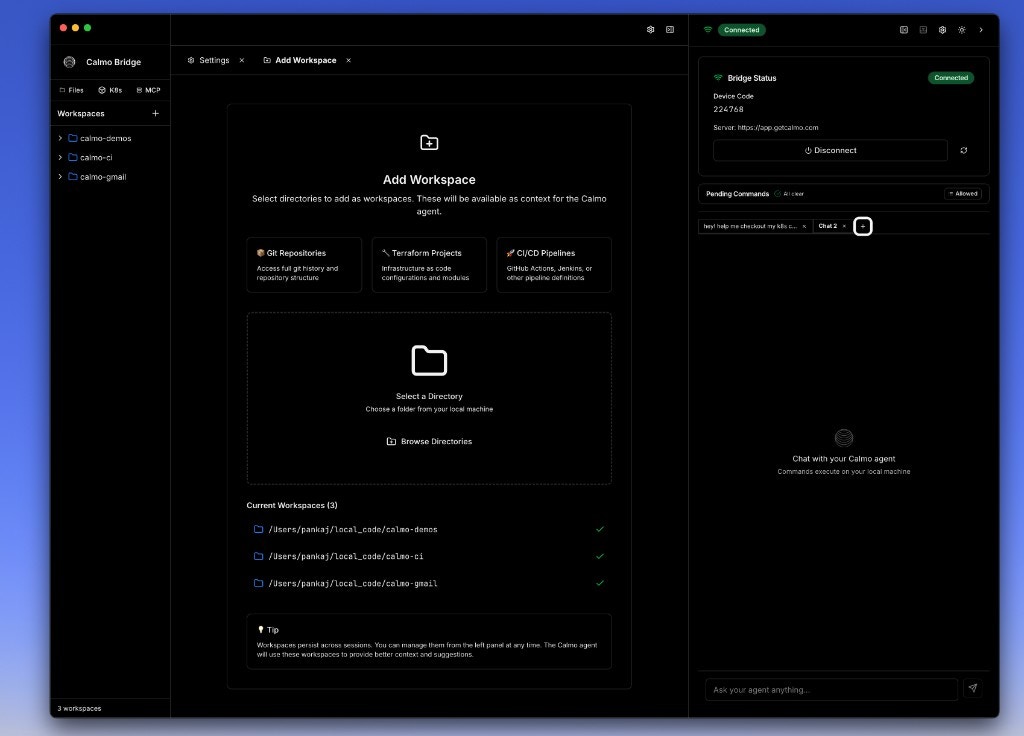 Choose a workspace type for better organization:
* **🎨 Git Repositories** - Access full git history and repository structure
* **🏗️ Terraform Projects** - Infrastructure as code configurations and modules
* **🚀 CI/CD Pipelines** - GitHub Actions, Jenkins, or other pipeline definitions
Or simply **Browse Directories** to add any folder.
The modal shows your **Current Workspaces** list so you can see what's already added.
### Workspace Best Practices
* Add specific project directories, not your entire home folder
* Use categorization to help Calmo understand project types
* Remove workspaces you no longer need
* Each workspace appears as an expandable folder in the sidebar
## Command Approval Workflow
Every command Calmo wants to run goes through your approval:
Choose a workspace type for better organization:
* **🎨 Git Repositories** - Access full git history and repository structure
* **🏗️ Terraform Projects** - Infrastructure as code configurations and modules
* **🚀 CI/CD Pipelines** - GitHub Actions, Jenkins, or other pipeline definitions
Or simply **Browse Directories** to add any folder.
The modal shows your **Current Workspaces** list so you can see what's already added.
### Workspace Best Practices
* Add specific project directories, not your entire home folder
* Use categorization to help Calmo understand project types
* Remove workspaces you no longer need
* Each workspace appears as an expandable folder in the sidebar
## Command Approval Workflow
Every command Calmo wants to run goes through your approval:
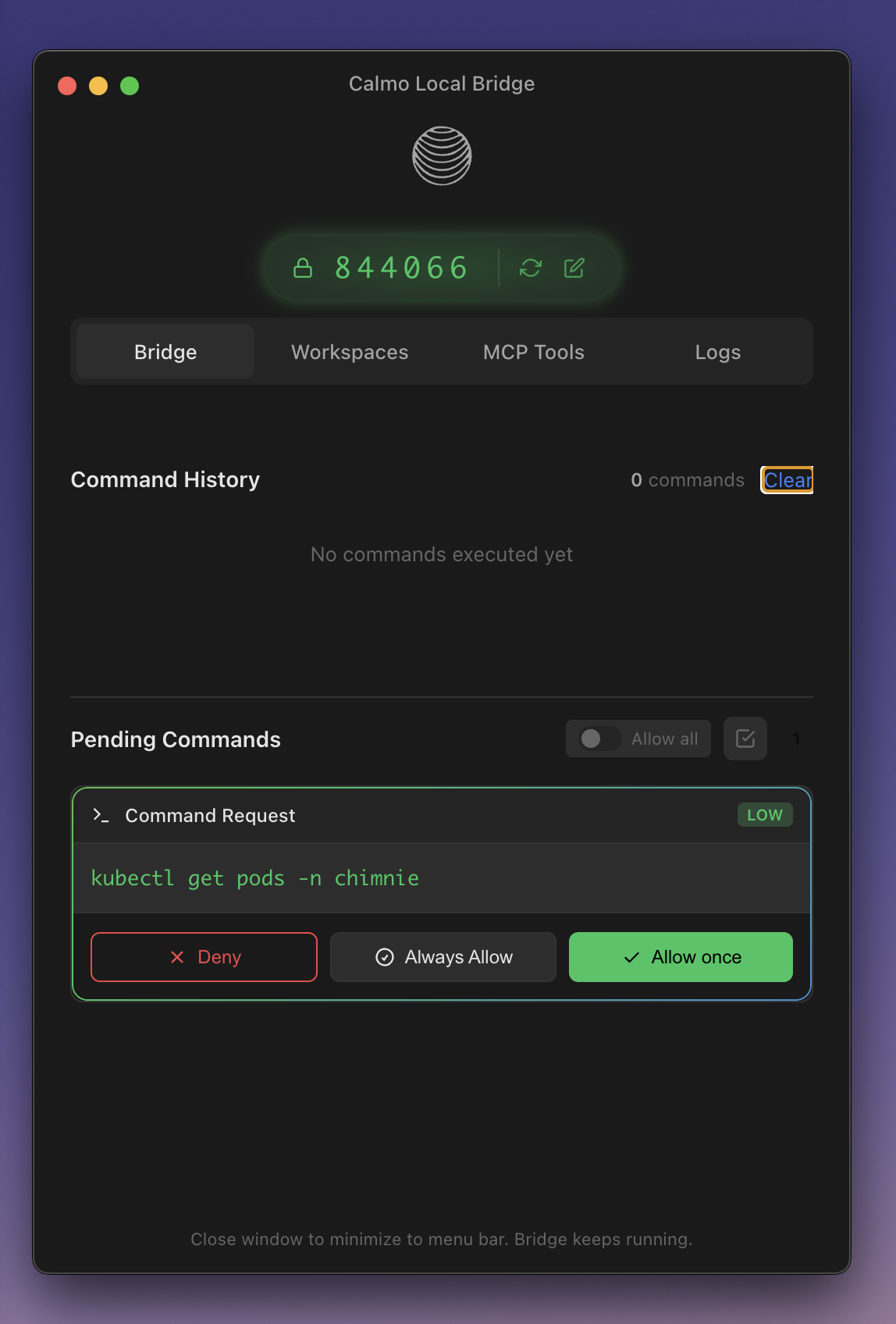 ### Approval Options
| Button | Action | Use When |
| ---------- | ------------------------- | ------------------------------------------------------- |
| **Deny** | Reject the command | Command is incorrect or too risky |
| **Always** | Auto-approve this pattern | Trusted, frequently-used commands (e.g., `kubectl get`) |
| **Allow** | Approve this once | Command is fine, but you want to review it next time |
### Risk Levels
Commands are automatically classified:
* 🟢 **LOW RISK** - Safe read operations (`kubectl get`, `git status`, `ls`)
* 🟡 **MEDIUM RISK** - Write operations (`kubectl delete pod`, `git commit`)
* 🔴 **HIGH RISK** - Potentially dangerous (`kubectl delete deployment`, `rm -rf`, `terraform destroy`)
Always review commands before approving, especially those marked MEDIUM or HIGH risk. Understand what they'll do to your system.
## MCP Server Management
### Viewing MCP Servers
The MCP Servers panel (left sidebar) shows all configured servers:
### Approval Options
| Button | Action | Use When |
| ---------- | ------------------------- | ------------------------------------------------------- |
| **Deny** | Reject the command | Command is incorrect or too risky |
| **Always** | Auto-approve this pattern | Trusted, frequently-used commands (e.g., `kubectl get`) |
| **Allow** | Approve this once | Command is fine, but you want to review it next time |
### Risk Levels
Commands are automatically classified:
* 🟢 **LOW RISK** - Safe read operations (`kubectl get`, `git status`, `ls`)
* 🟡 **MEDIUM RISK** - Write operations (`kubectl delete pod`, `git commit`)
* 🔴 **HIGH RISK** - Potentially dangerous (`kubectl delete deployment`, `rm -rf`, `terraform destroy`)
Always review commands before approving, especially those marked MEDIUM or HIGH risk. Understand what they'll do to your system.
## MCP Server Management
### Viewing MCP Servers
The MCP Servers panel (left sidebar) shows all configured servers:
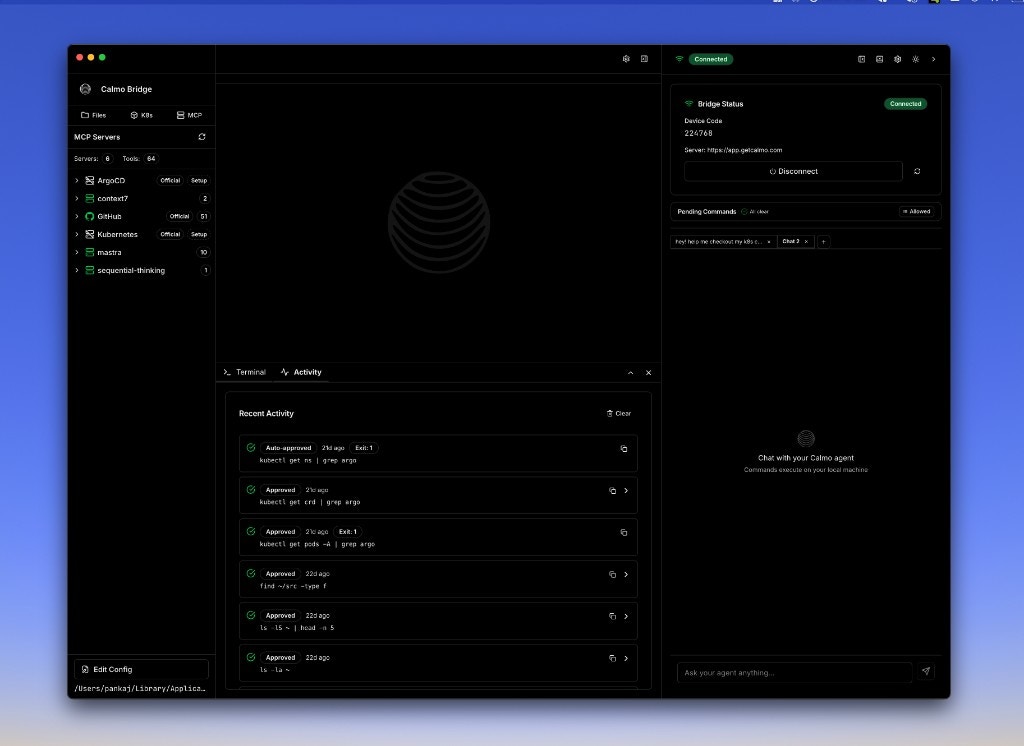 Each server displays:
* Server name
* Type badge (http or stdio)
* Tool count (e.g., "2 tools available")
* Connection status (expandable for details)
### Server Details
Click on a server to view its details:
Each server displays:
* Server name
* Type badge (http or stdio)
* Tool count (e.g., "2 tools available")
* Connection status (expandable for details)
### Server Details
Click on a server to view its details:
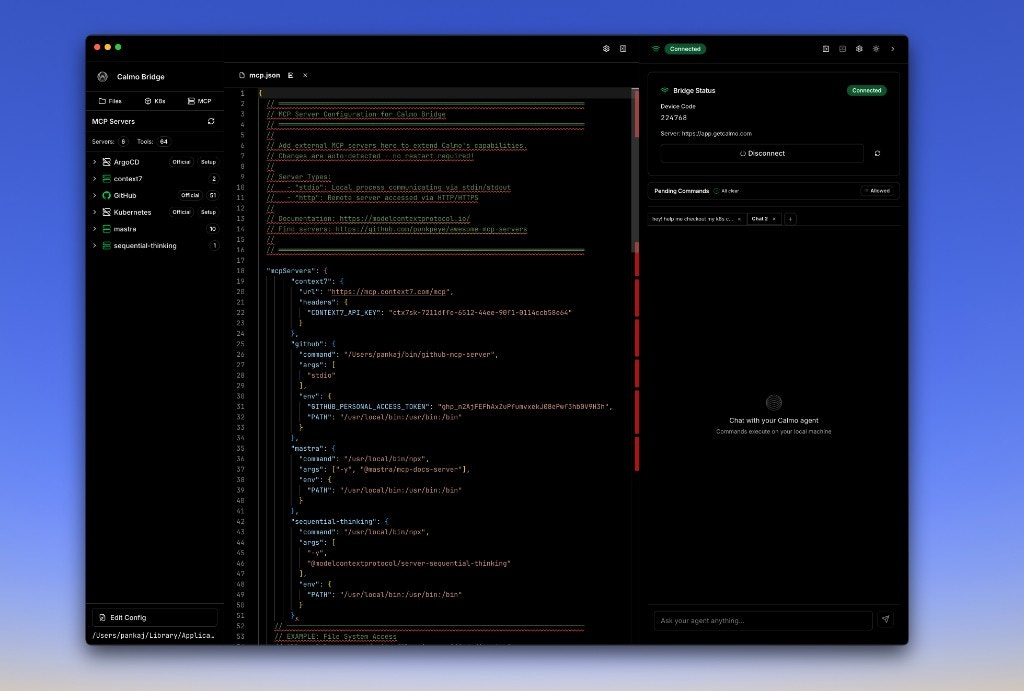 The detail panel shows:
* **Type** - http or stdio transport
* **Status** - Connected/Disconnected
* **Tools Available** - Count and list of tools
* **Reload Server** button - Restart the server
* **Edit Config** button - Open mcp.json for editing
## Activity Monitoring
### Terminal Panel
Real-time command output with shell integration:
The detail panel shows:
* **Type** - http or stdio transport
* **Status** - Connected/Disconnected
* **Tools Available** - Count and list of tools
* **Reload Server** button - Restart the server
* **Edit Config** button - Open mcp.json for editing
## Activity Monitoring
### Terminal Panel
Real-time command output with shell integration:
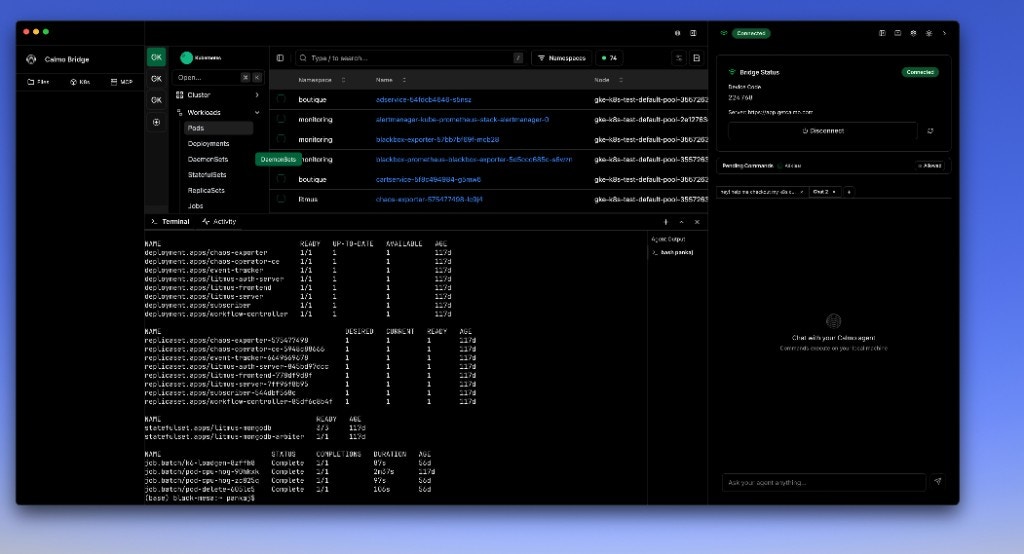 * Shell prompt showing current directory
* Real-time output streaming
* Color and formatting support
* Command completion indicators (✓ Command completed)
### Activity Panel
View recent command history:
* Shell prompt showing current directory
* Real-time output streaming
* Color and formatting support
* Command completion indicators (✓ Command completed)
### Activity Panel
View recent command history:
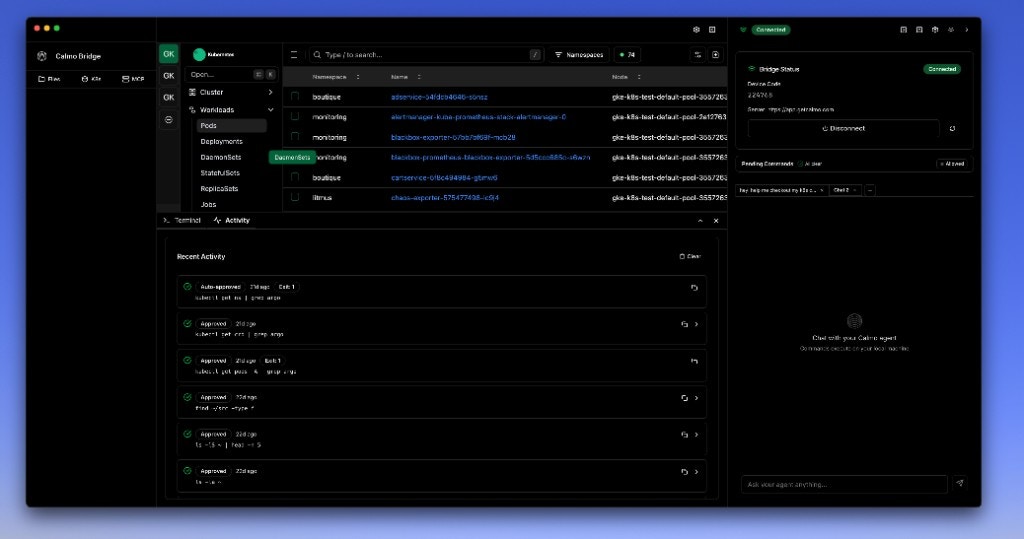 Each entry shows:
* ✅ **Auto-approved** - Matched an always-allow pattern
* ✅ **Approved** - Manually approved by you
* ❌ **Denied** - Rejected by you
* Timestamp and exit status (e.g., "1d ago Exit 1")
* Full command (e.g., "kubectl get ns | grep argo")
* Click to expand for full output
## Security
Calmo Bridge IDE is designed with security as the top priority:
* **Human-in-the-Loop** - You approve every command before execution (unless explicitly auto-approved)
* **Local Execution Only** - Commands run with your user permissions, not as root
* **No Internet Exposure** - Bridge IDE doesn't expose your system to the internet
* **Secure Pairing** - Time-limited 6-digit codes ensure only authorized sessions connect
* **Complete Audit Trail** - Every command and action is logged in the Activity panel
* **Sandboxed Workspaces** - Calmo only has access to directories you explicitly add
* **MCP Server Isolation** - External servers run in separate processes with limited permissions
Never auto-approve destructive commands like `rm -rf`, `kubectl delete deployment`, or `terraform destroy`. Always review these manually.
## Menu Bar / System Tray
When you close the Bridge IDE window, it continues running in the background:
* **macOS**: Bridge IDE icon appears in the menu bar (top right)
* **Windows**: Bridge IDE icon appears in the system tray (bottom right)
* **Linux**: Icon appears in the notification area
Click the icon to:
* Reopen the main window
* View connection status
* Access quick settings
* Quit the application completely
The bridge maintains its connection while minimized.
Closing the window minimizes to the menu bar/tray. The bridge keeps running and stays connected to Calmo.
## Keyboard Shortcuts
| Action | macOS | Windows/Linux |
| ------------------- | ------ | ------------- |
| **Save File** | Cmd+S | Ctrl+S |
| **New Tab** | Cmd+T | Ctrl+T |
| **Close Tab** | Cmd+W | Ctrl+W |
| **Toggle Terminal** | Cmd+\` | Ctrl+\` |
| **Focus Chat** | Cmd+/ | Ctrl+/ |
| **Open Settings** | Cmd+, | Ctrl+, |
## Next Steps
Learn about the file browser, editor, and workspace organization
Explore command execution capabilities and the integrated terminal
Configure MCP servers to extend Calmo's capabilities
Security recommendations and workflow optimization tips
Common issues and solutions for the integrated environment
Technical details about how the Bridge IDE works under the hood
***
*For assistance with Calmo Bridge IDE, contact our support team at [support@getcalmo.com](mailto:support@getcalmo.com).*
Each entry shows:
* ✅ **Auto-approved** - Matched an always-allow pattern
* ✅ **Approved** - Manually approved by you
* ❌ **Denied** - Rejected by you
* Timestamp and exit status (e.g., "1d ago Exit 1")
* Full command (e.g., "kubectl get ns | grep argo")
* Click to expand for full output
## Security
Calmo Bridge IDE is designed with security as the top priority:
* **Human-in-the-Loop** - You approve every command before execution (unless explicitly auto-approved)
* **Local Execution Only** - Commands run with your user permissions, not as root
* **No Internet Exposure** - Bridge IDE doesn't expose your system to the internet
* **Secure Pairing** - Time-limited 6-digit codes ensure only authorized sessions connect
* **Complete Audit Trail** - Every command and action is logged in the Activity panel
* **Sandboxed Workspaces** - Calmo only has access to directories you explicitly add
* **MCP Server Isolation** - External servers run in separate processes with limited permissions
Never auto-approve destructive commands like `rm -rf`, `kubectl delete deployment`, or `terraform destroy`. Always review these manually.
## Menu Bar / System Tray
When you close the Bridge IDE window, it continues running in the background:
* **macOS**: Bridge IDE icon appears in the menu bar (top right)
* **Windows**: Bridge IDE icon appears in the system tray (bottom right)
* **Linux**: Icon appears in the notification area
Click the icon to:
* Reopen the main window
* View connection status
* Access quick settings
* Quit the application completely
The bridge maintains its connection while minimized.
Closing the window minimizes to the menu bar/tray. The bridge keeps running and stays connected to Calmo.
## Keyboard Shortcuts
| Action | macOS | Windows/Linux |
| ------------------- | ------ | ------------- |
| **Save File** | Cmd+S | Ctrl+S |
| **New Tab** | Cmd+T | Ctrl+T |
| **Close Tab** | Cmd+W | Ctrl+W |
| **Toggle Terminal** | Cmd+\` | Ctrl+\` |
| **Focus Chat** | Cmd+/ | Ctrl+/ |
| **Open Settings** | Cmd+, | Ctrl+, |
## Next Steps
Learn about the file browser, editor, and workspace organization
Explore command execution capabilities and the integrated terminal
Configure MCP servers to extend Calmo's capabilities
Security recommendations and workflow optimization tips
Common issues and solutions for the integrated environment
Technical details about how the Bridge IDE works under the hood
***
*For assistance with Calmo Bridge IDE, contact our support team at [support@getcalmo.com](mailto:support@getcalmo.com).*