> ## Documentation Index
> Fetch the complete documentation index at: https://docs.getcalmo.com/llms.txt
> Use this file to discover all available pages before exploring further.
# MCP Configuration
> Configure Model Context Protocol servers to extend Calmo Bridge IDE capabilities with external tools and documentation
# MCP Configuration
The Model Context Protocol (MCP) is an open standard that allows AI assistants to connect to external tools and data sources. Calmo Bridge IDE supports MCP servers, enabling you to extend Calmo's capabilities with documentation lookup, specialized tools, sequential thinking, and more—all integrated into the same workspace.
## What is MCP?
MCP provides a standardized way for AI applications to:
* **Access External Tools** - Connect to specialized tools and services
* **Retrieve Documentation** - Fetch up-to-date docs and code examples
* **Enable New Capabilities** - Add sequential thinking, file access, database queries, and more
* **Extend Context** - Give Calmo access to information beyond its training data
MCP servers run locally (stdio) or remotely (http/https) and communicate with Calmo through a standardized protocol.
## Welcome Wizard
During initial setup, the Welcome screen introduces Calmo Bridge IDE:
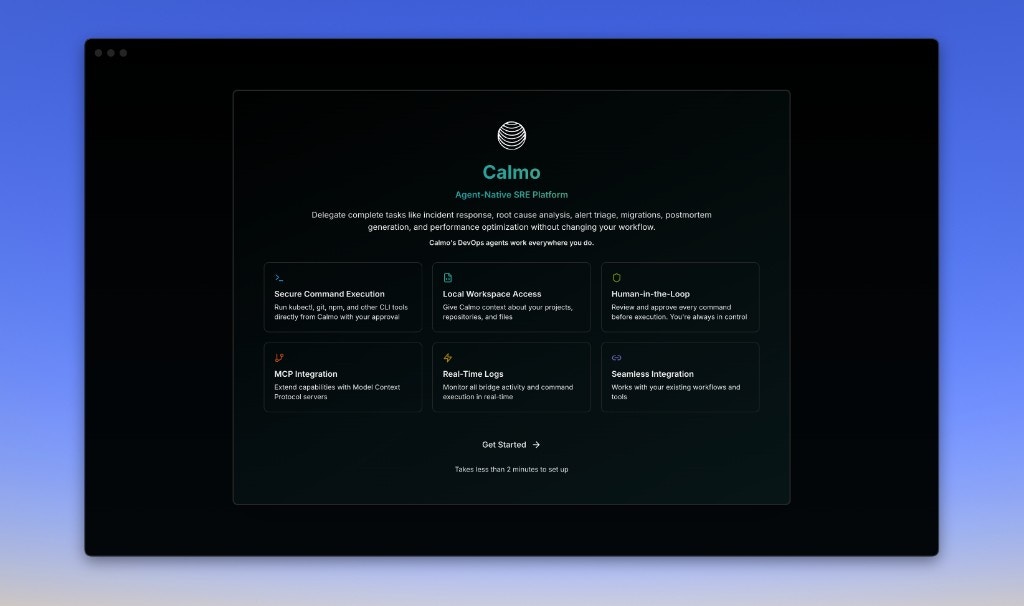 **Calmo - Agent-Native SRE Platform**
The welcome screen highlights the key capabilities:
* **Secure Command Execution** - Run kubectl, git, npm, and other CLI tools directly from Calmo with your approval
* **Local Workspace Access** - Give Calmo context about your projects, repositories, and files
* **Human-in-the-Loop** - Review and approve every command before execution. You're always in control
* **MCP Integration** - Extend capabilities with Model Context Protocol servers
* **Real-Time Logs** - Monitor bridge activity and command execution in real-time
* **Seamless Integration** - Works with your existing workflows and tools
**Get Started Button** - Takes less than 2 minutes to set up
After clicking Get Started, you'll configure MCP servers and workspaces. You can skip MCP configuration during setup and add servers later via the MCP Servers panel in the IDE.
## Viewing MCP Servers
### Server List Panel
The MCP Servers section appears in the left sidebar below Workspaces:
**Calmo - Agent-Native SRE Platform**
The welcome screen highlights the key capabilities:
* **Secure Command Execution** - Run kubectl, git, npm, and other CLI tools directly from Calmo with your approval
* **Local Workspace Access** - Give Calmo context about your projects, repositories, and files
* **Human-in-the-Loop** - Review and approve every command before execution. You're always in control
* **MCP Integration** - Extend capabilities with Model Context Protocol servers
* **Real-Time Logs** - Monitor bridge activity and command execution in real-time
* **Seamless Integration** - Works with your existing workflows and tools
**Get Started Button** - Takes less than 2 minutes to set up
After clicking Get Started, you'll configure MCP servers and workspaces. You can skip MCP configuration during setup and add servers later via the MCP Servers panel in the IDE.
## Viewing MCP Servers
### Server List Panel
The MCP Servers section appears in the left sidebar below Workspaces:
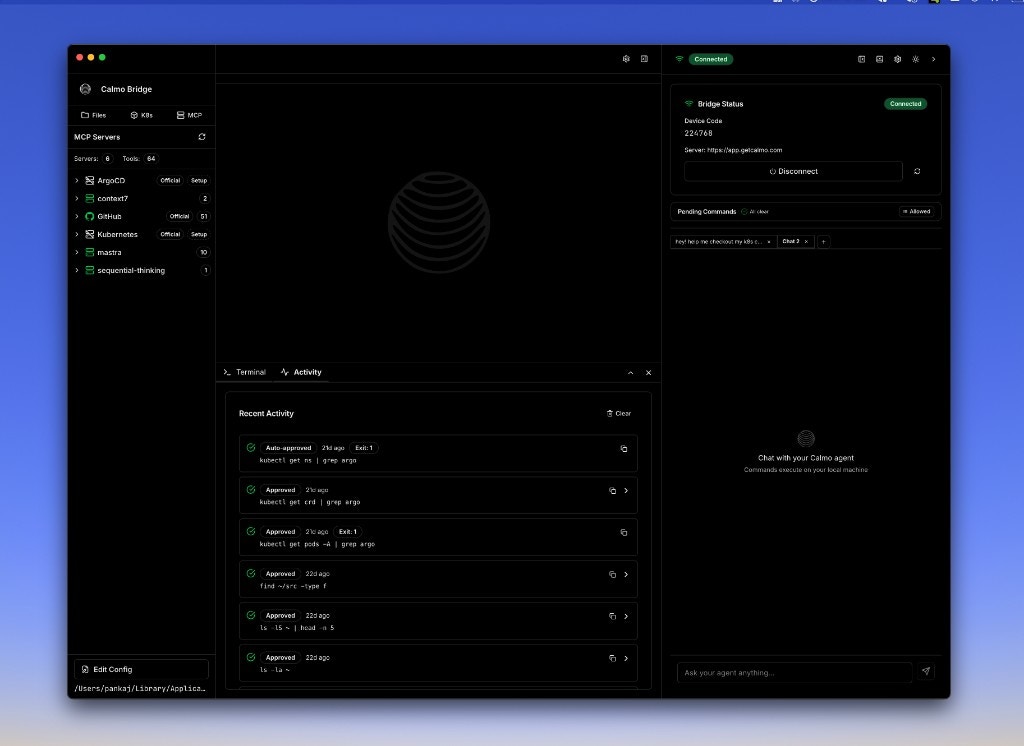 **Panel Header:**
```
🔌 MCP Servers ↻
Servers: 6 Tools: 64
```
* **Servers count** - Total number of configured servers (6)
* **Tools count** - Total tools across all servers (64)
* **Refresh icon (↻)** - Reload all servers
**Server List:**
Each server shows:
* **Server name** - Configured identifier (e.g., "ArgoCD", "context7", "GitHub")
* **Status indicator** - Green dot (🟢) = connected/online, Gray dot (⚪) = disconnected/offline
* **Tool count** - Number of tools provided (e.g., "2", "51", "60mp", "5emp")
* **Status label** - "Offline" displayed for disconnected servers
* **Expand arrow (>)** - Click to view server details
**Example:**
```
> 🟢 ArgoCD Offline 60mp
> 🟢 context7 2
> ⚪ GitHub Offline 51
> ⚪ Kubernetes Offline 5emp
> 🟢 mastra 10
> 🟢 sequential-thinking 1
```
### Server Detail View
Click on any server name to open its detail panel:
**Panel Header:**
```
🔌 MCP Servers ↻
Servers: 6 Tools: 64
```
* **Servers count** - Total number of configured servers (6)
* **Tools count** - Total tools across all servers (64)
* **Refresh icon (↻)** - Reload all servers
**Server List:**
Each server shows:
* **Server name** - Configured identifier (e.g., "ArgoCD", "context7", "GitHub")
* **Status indicator** - Green dot (🟢) = connected/online, Gray dot (⚪) = disconnected/offline
* **Tool count** - Number of tools provided (e.g., "2", "51", "60mp", "5emp")
* **Status label** - "Offline" displayed for disconnected servers
* **Expand arrow (>)** - Click to view server details
**Example:**
```
> 🟢 ArgoCD Offline 60mp
> 🟢 context7 2
> ⚪ GitHub Offline 51
> ⚪ Kubernetes Offline 5emp
> 🟢 mastra 10
> 🟢 sequential-thinking 1
```
### Server Detail View
Click on any server name to open its detail panel:
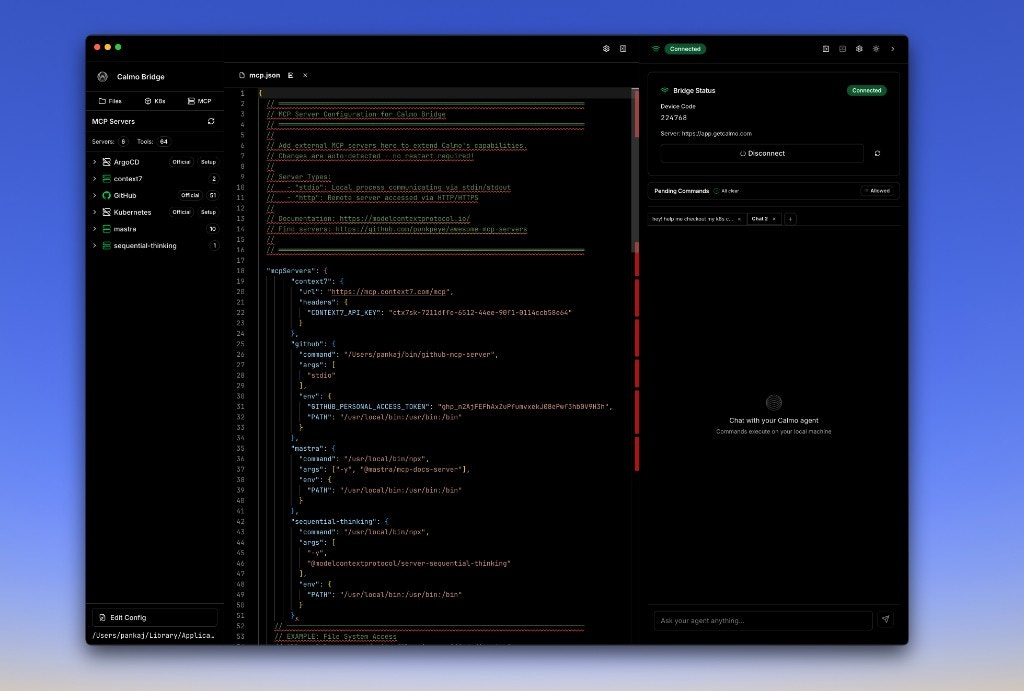 **Detail Panel Contents:**
**Server Status:**
* **Server name** - Large heading (e.g., "context7")
* **Connected** badge - Green status indicator
**Server Information Section:**
* **Type** - Transport type (http or stdio)
* **Status** - Connection state (Connected, Disconnected, Error)
* **Tools Available** - Count of tools this server provides
**Available Tools Section:**
* "2 tools provided by this server" (expandable)
* Click to see list of tool names and descriptions
**Action Buttons:**
* **Reload Server** - Restart this server's connection
* **Edit Config** - Open `mcp.json` in the editor
## Configuring MCP Servers
### Accessing the Configuration
There are two ways to edit MCP configuration:
**Method 1: From Server Detail Panel**
1. Click on any server in the MCP Servers list
2. Click **Edit Config** button in the detail panel
**Method 2: From Panel Footer**
1. Scroll to the bottom of the MCP Servers panel
2. Click **Edit Config** button
Both methods open the `mcp.json` file in the center editor panel.
**Detail Panel Contents:**
**Server Status:**
* **Server name** - Large heading (e.g., "context7")
* **Connected** badge - Green status indicator
**Server Information Section:**
* **Type** - Transport type (http or stdio)
* **Status** - Connection state (Connected, Disconnected, Error)
* **Tools Available** - Count of tools this server provides
**Available Tools Section:**
* "2 tools provided by this server" (expandable)
* Click to see list of tool names and descriptions
**Action Buttons:**
* **Reload Server** - Restart this server's connection
* **Edit Config** - Open `mcp.json` in the editor
## Configuring MCP Servers
### Accessing the Configuration
There are two ways to edit MCP configuration:
**Method 1: From Server Detail Panel**
1. Click on any server in the MCP Servers list
2. Click **Edit Config** button in the detail panel
**Method 2: From Panel Footer**
1. Scroll to the bottom of the MCP Servers panel
2. Click **Edit Config** button
Both methods open the `mcp.json` file in the center editor panel.
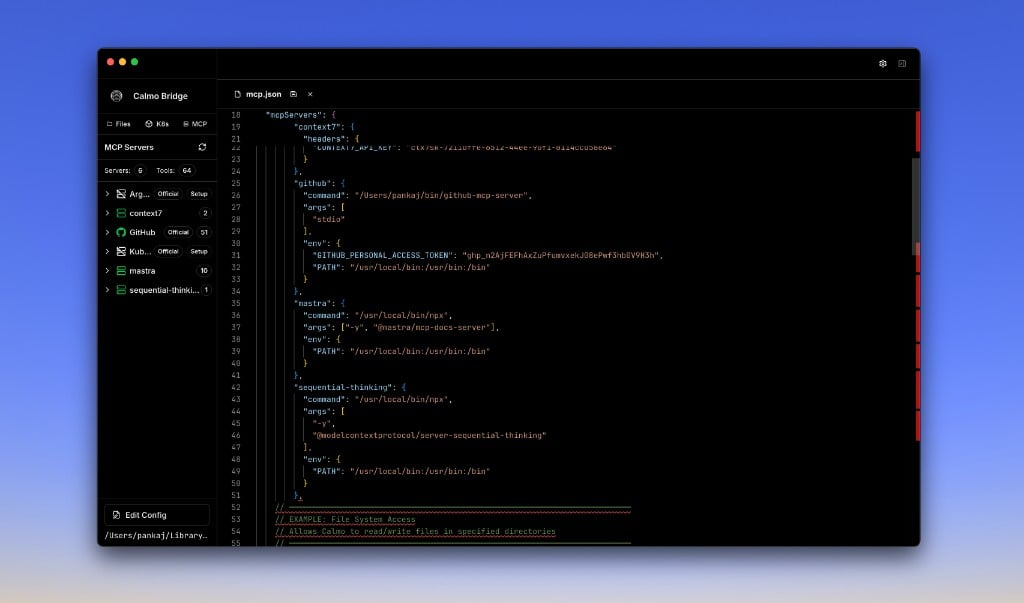 **Configuration File Location:**
* **macOS**: `~/Library/Application Support/Calmo Bridge IDE/mcp.json`
* **Windows**: `%APPDATA%\Calmo Bridge IDE\mcp.json`
* **Linux**: `~/.config/Calmo Bridge IDE/mcp.json`
### Configuration Format
The configuration uses JSON format with an `mcpServers` object:
```json theme={null}
{
"mcpServers": {
"server-name": {
// Server configuration
}
}
}
```
Each server is configured with either **stdio** (local process) or **http/https** (remote) transport.
## Server Types
### Stdio Servers
Local processes that communicate via stdin/stdout. Best for npm packages and local tools.
**Configuration:**
```json theme={null}
{
"mcpServers": {
"mastra": {
"command": "/usr/local/bin/npx",
"args": ["-y", "@mastra/mcp-docs-server"],
"env": {
"PATH": "/usr/local/bin:/usr/bin:/bin"
}
}
}
}
```
**Required Fields:**
| Field | Type | Description |
| --------- | ------ | ------------------------------------------------------------- |
| `command` | string | Full path to executable (e.g., `/usr/local/bin/npx`) |
| `args` | array | Command arguments (e.g., `["-y", "@mastra/mcp-docs-server"]`) |
**Optional Fields:**
| Field | Type | Description |
| ---------- | ------- | ----------------------------------------- |
| `env` | object | Environment variables for the process |
| `disabled` | boolean | Set to `true` to disable without removing |
**Finding Command Paths:**
```bash theme={null}
# macOS/Linux
which npx
# Output: /usr/local/bin/npx
# Windows
where npx
# Output: C:\Program Files\nodejs\npx.cmd
```
### HTTP/HTTPS Servers
Remote servers accessed over the network. Best for cloud-hosted services.
**Configuration:**
```json theme={null}
{
"mcpServers": {
"context7": {
"url": "https://mcp.context7.com/mcp",
"headers": {
"CONTEXT7_API_KEY": "ctx7sk-xxxx-xxxx-xxxx"
}
}
}
}
```
**Required Fields:**
| Field | Type | Description |
| ----- | ------ | ----------------------------------- |
| `url` | string | Full URL to the MCP server endpoint |
**Optional Fields:**
| Field | Type | Description |
| ---------- | ------- | ----------------------------------------- |
| `headers` | object | HTTP headers (typically for API keys) |
| `disabled` | boolean | Set to `true` to disable without removing |
## Example Configurations
### Documentation Server (Context7)
Provides up-to-date documentation for any library:
```json theme={null}
{
"mcpServers": {
"context7": {
"url": "https://mcp.context7.com/mcp",
"headers": {
"CONTEXT7_API_KEY": "ctx7sk-xxxx-xxxx-xxxx"
}
}
}
}
```
**Tools Provided:**
* `resolve-library-id` - Find the correct library identifier
* `get-library-docs` - Retrieve documentation for any library
**Use Cases:**
* "Show me the React docs for useState"
* "How do I use Terraform's aws\_instance resource?"
* "Get me examples of using Express.js middleware"
### Mastra Documentation
Access Mastra.ai documentation, examples, and migration guides:
```json theme={null}
{
"mcpServers": {
"mastra": {
"command": "/usr/local/bin/npx",
"args": ["-y", "@mastra/mcp-docs-server"],
"env": {
"PATH": "/usr/local/bin:/usr/bin:/bin"
}
}
}
}
```
**Tools Provided:**
* `mastraDocs` - Access documentation
* `mastraExamples` - Code examples
* `mastraBlog` - Blog posts and tutorials
* `mastraChanges` - Changelog
* `mastraMigration` - Migration guides
* ...and more
### GitHub Integration
Access GitHub repositories, issues, and pull requests:
```json theme={null}
{
"mcpServers": {
"github": {
"command": "/usr/local/bin/npx",
"args": ["-y", "@modelcontextprotocol/server-github"],
"env": {
"GITHUB_TOKEN": "ghp_xxxxxxxxxxxx",
"PATH": "/usr/local/bin:/usr/bin:/bin"
}
}
}
}
```
**Tools Provided:** 50+ tools for repository management, issues, PRs, and more
**Use Cases:**
* "List open issues in my repo"
* "Create a PR for this branch"
* "Show me recent commits"
### Sequential Thinking
Enables structured problem-solving through step-by-step reasoning:
```json theme={null}
{
"mcpServers": {
"sequential-thinking": {
"command": "/usr/local/bin/npx",
"args": [
"-y",
"@modelcontextprotocol/server-sequential-thinking"
],
"env": {
"PATH": "/usr/local/bin:/usr/bin:/bin"
}
}
}
}
```
**Tools Provided:**
* `sequentialthinking` - Structured reasoning tool
**Use Cases:**
* Complex debugging
* Architecture decisions
* Multi-step problem solving
### Complete Example
A full configuration with multiple servers:
```json theme={null}
{
"mcpServers": {
"context7": {
"url": "https://mcp.context7.com/mcp",
"headers": {
"CONTEXT7_API_KEY": "ctx7sk-xxxx-xxxx-xxxx"
}
},
"github": {
"command": "/usr/local/bin/npx",
"args": ["-y", "@modelcontextprotocol/server-github"],
"env": {
"GITHUB_TOKEN": "ghp_xxxxxxxxxxxx",
"PATH": "/usr/local/bin:/usr/bin:/bin"
}
},
"mastra": {
"command": "/usr/local/bin/npx",
"args": ["-y", "@mastra/mcp-docs-server"],
"env": {
"PATH": "/usr/local/bin:/usr/bin:/bin"
}
},
"sequential-thinking": {
"command": "/usr/local/bin/npx",
"args": ["-y", "@modelcontextprotocol/server-sequential-thinking"],
"env": {
"PATH": "/usr/local/bin:/usr/bin:/bin"
}
}
}
}
```
## Managing Servers
### Reloading Servers
After editing the configuration, reload servers to apply changes:
**Reload All Servers:**
* Click the **↻** refresh icon in the MCP Servers panel header
* All servers reconnect with new configuration
**Reload Single Server:**
1. Click on the server in the list
2. Click **Reload Server** button in the detail panel
3. That server restarts with updated config
**Auto-Reload:**
* The IDE watches `mcp.json` for changes
* Servers automatically reload when you save the file
* No manual reload needed in most cases
### Disabling a Server
To temporarily disable a server without removing it:
```json theme={null}
{
"mcpServers": {
"server-name": {
"command": "/usr/local/bin/npx",
"args": ["-y", "some-server"],
"disabled": true
}
}
}
```
The server will show as disconnected in the panel but remain in the config.
### Removing a Server
To permanently remove a server:
1. Click **Edit Config** in the MCP Servers panel
2. Delete the entire server object from `mcpServers`
3. Save the file
4. The server disappears from the server list
**Example:**
```json theme={null}
{
"mcpServers": {
"context7": { /* ... */ },
// Remove this entire block to delete the server
"server-to-remove": {
"command": "/usr/local/bin/npx",
"args": ["-y", "old-server"]
},
"github": { /* ... */ }
}
}
```
### Viewing Server Logs
Check server activity and errors in the Activity Log:
1. Switch to the **Activity** tab in the bottom panel
2. Look for MCP-related log entries:
```
[15:36:34] [MCP Config] Found server: context7 (http)
[15:36:34] [MCP Config] Found server: mastra (stdio)
[15:36:35] [MCP:context7] Connected with 2 tools
[15:36:37] [MCP:mastra] Connected with 10 tools
[15:36:38] [MCP Registry] Active servers: 3
```
Errors appear with red indicators:
```
[15:37:12] [MCP:github] Error: spawn /usr/local/bin/npx ENOENT
```
## Popular MCP Servers
### Official Servers
| Server | Type | Description |
| ---------------------------------------------------- | ----- | ------------------------------------------- |
| **@modelcontextprotocol/server-github** | Stdio | GitHub API integration (repos, issues, PRs) |
| **@modelcontextprotocol/server-filesystem** | Stdio | File system read/write access |
| **@modelcontextprotocol/server-sequential-thinking** | Stdio | Structured reasoning and problem-solving |
| **@modelcontextprotocol/server-slack** | Stdio | Slack messaging integration |
| **@modelcontextprotocol/server-postgres** | Stdio | PostgreSQL database queries |
### Community Servers
| Server | Type | Description |
| --------------------------- | ----- | --------------------------------------- |
| **context7** | HTTP | Library documentation and code examples |
| **@mastra/mcp-docs-server** | Stdio | Mastra.ai documentation and examples |
Find more servers at the [Awesome MCP Servers](https://github.com/punkpeye/awesome-mcp-servers) repository and [modelcontextprotocol.io](https://modelcontextprotocol.io).
## Platform-Specific Configuration
### macOS/Linux
Standard stdio server configuration:
```json theme={null}
{
"mcpServers": {
"server-name": {
"command": "/usr/local/bin/npx",
"args": ["-y", "@package/mcp-server"],
"env": {
"PATH": "/usr/local/bin:/usr/bin:/bin"
}
}
}
}
```
### Windows
On Windows, `npx` is a batch script that requires shell access. Wrap with `cmd /c`:
```json theme={null}
{
"mcpServers": {
"server-name": {
"command": "cmd",
"args": [
"/c",
"npx",
"-y",
"@package/mcp-server"
]
}
}
}
```
Or use PowerShell:
```json theme={null}
{
"mcpServers": {
"server-name": {
"command": "powershell",
"args": [
"-Command",
"npx -y @package/mcp-server"
]
}
}
}
```
## Security Considerations
MCP servers run with your user permissions and may have network access. Only configure servers you trust.
**Best Practices:**
* **Review Server Code** - Understand what servers do before adding them
* **Limit Permissions** - Some servers request file system or network access
* **Secure API Keys** - Keep API keys private; don't commit `mcp.json` to git
* **Monitor Logs** - Watch for unexpected behavior in the Activity Log
* **Use HTTPS** - For remote servers, always use https\:// URLs
* **Validate Sources** - Only install servers from trusted repositories
**API Key Security:**
```json theme={null}
{
"mcpServers": {
"context7": {
"url": "https://mcp.context7.com/mcp",
"headers": {
// ❌ BAD: Don't commit this to git
"CONTEXT7_API_KEY": "ctx7sk-real-key-here"
}
}
}
}
```
Consider using environment variables for sensitive values (support varies by server).
## Troubleshooting
### Server Won't Connect
If a server shows disconnected in the panel:
1. **Check the configuration**
* Click **Edit Config** and verify JSON syntax
* Look for typos in server name, command, or URL
* Validate all required fields are present
2. **Verify command path** (stdio servers)
```bash theme={null}
which npx # macOS/Linux
where npx # Windows
```
Use the full path shown in the config.
3. **Check environment** (stdio servers)
* Ensure PATH includes necessary directories
* Verify npm packages are installed globally or accessible
4. **Review logs**
* Switch to Activity tab
* Look for error messages from the server
* Common errors:
* `spawn ENOENT` - Command not found
* `Connection refused` - URL incorrect (HTTP servers)
* `Unauthorized` - Invalid API key (HTTP servers)
5. **Reload the server**
* Click on the server
* Click **Reload Server** button
### Server Connected But No Tools
If a server shows "Connected" but 0 tools:
1. **Wait for initialization** - Some servers take 10-30 seconds to load tools
2. **Check stderr** - Look in Activity Log for startup errors
3. **Verify package** - Ensure the npm package name is correct
4. **Reload** - Click Reload Server to try again
### API Key Issues (HTTP Servers)
If an HTTP server fails to connect:
1. **Check header format**
```json theme={null}
"headers": {
"CONTEXT7_API_KEY": "your-key-here"
}
```
Header names must match what the server expects.
2. **Verify key validity**
* Ensure the API key is active
* Check it has proper permissions
* Test with curl:
```bash theme={null}
curl -H "CONTEXT7_API_KEY: your-key" https://mcp.context7.com/mcp
```
3. **Check URL**
* Confirm the full endpoint URL
* Ensure it includes `/mcp` or correct path
### Configuration Errors
If you get JSON parsing errors:
1. **Validate JSON syntax**
* Use an online JSON validator
* Common mistakes: missing commas, trailing commas, unquoted keys
2. **Check for typos**
* `mcpServers` (not `mcpServer`)
* Correct quotes (double quotes for JSON)
3. **Escape special characters**
* Backslashes in Windows paths: `C:\\path\\to\\file`
* Or use forward slashes: `C:/path/to/file`
### Server Crashes or Restarts
If a server repeatedly disconnects:
1. **Check logs** for error patterns
2. **Update server package**
```bash theme={null}
npm update -g @package/mcp-server
```
3. **Report to server maintainers** with error logs
## Next Steps
Learn about the file browser and workspace organization
Explore command execution with the integrated terminal
Tips for using MCP servers effectively in your workflow
Solutions to common MCP server issues
***
*For assistance with MCP configuration, contact our support team at [support@getcalmo.com](mailto:support@getcalmo.com).*
**Configuration File Location:**
* **macOS**: `~/Library/Application Support/Calmo Bridge IDE/mcp.json`
* **Windows**: `%APPDATA%\Calmo Bridge IDE\mcp.json`
* **Linux**: `~/.config/Calmo Bridge IDE/mcp.json`
### Configuration Format
The configuration uses JSON format with an `mcpServers` object:
```json theme={null}
{
"mcpServers": {
"server-name": {
// Server configuration
}
}
}
```
Each server is configured with either **stdio** (local process) or **http/https** (remote) transport.
## Server Types
### Stdio Servers
Local processes that communicate via stdin/stdout. Best for npm packages and local tools.
**Configuration:**
```json theme={null}
{
"mcpServers": {
"mastra": {
"command": "/usr/local/bin/npx",
"args": ["-y", "@mastra/mcp-docs-server"],
"env": {
"PATH": "/usr/local/bin:/usr/bin:/bin"
}
}
}
}
```
**Required Fields:**
| Field | Type | Description |
| --------- | ------ | ------------------------------------------------------------- |
| `command` | string | Full path to executable (e.g., `/usr/local/bin/npx`) |
| `args` | array | Command arguments (e.g., `["-y", "@mastra/mcp-docs-server"]`) |
**Optional Fields:**
| Field | Type | Description |
| ---------- | ------- | ----------------------------------------- |
| `env` | object | Environment variables for the process |
| `disabled` | boolean | Set to `true` to disable without removing |
**Finding Command Paths:**
```bash theme={null}
# macOS/Linux
which npx
# Output: /usr/local/bin/npx
# Windows
where npx
# Output: C:\Program Files\nodejs\npx.cmd
```
### HTTP/HTTPS Servers
Remote servers accessed over the network. Best for cloud-hosted services.
**Configuration:**
```json theme={null}
{
"mcpServers": {
"context7": {
"url": "https://mcp.context7.com/mcp",
"headers": {
"CONTEXT7_API_KEY": "ctx7sk-xxxx-xxxx-xxxx"
}
}
}
}
```
**Required Fields:**
| Field | Type | Description |
| ----- | ------ | ----------------------------------- |
| `url` | string | Full URL to the MCP server endpoint |
**Optional Fields:**
| Field | Type | Description |
| ---------- | ------- | ----------------------------------------- |
| `headers` | object | HTTP headers (typically for API keys) |
| `disabled` | boolean | Set to `true` to disable without removing |
## Example Configurations
### Documentation Server (Context7)
Provides up-to-date documentation for any library:
```json theme={null}
{
"mcpServers": {
"context7": {
"url": "https://mcp.context7.com/mcp",
"headers": {
"CONTEXT7_API_KEY": "ctx7sk-xxxx-xxxx-xxxx"
}
}
}
}
```
**Tools Provided:**
* `resolve-library-id` - Find the correct library identifier
* `get-library-docs` - Retrieve documentation for any library
**Use Cases:**
* "Show me the React docs for useState"
* "How do I use Terraform's aws\_instance resource?"
* "Get me examples of using Express.js middleware"
### Mastra Documentation
Access Mastra.ai documentation, examples, and migration guides:
```json theme={null}
{
"mcpServers": {
"mastra": {
"command": "/usr/local/bin/npx",
"args": ["-y", "@mastra/mcp-docs-server"],
"env": {
"PATH": "/usr/local/bin:/usr/bin:/bin"
}
}
}
}
```
**Tools Provided:**
* `mastraDocs` - Access documentation
* `mastraExamples` - Code examples
* `mastraBlog` - Blog posts and tutorials
* `mastraChanges` - Changelog
* `mastraMigration` - Migration guides
* ...and more
### GitHub Integration
Access GitHub repositories, issues, and pull requests:
```json theme={null}
{
"mcpServers": {
"github": {
"command": "/usr/local/bin/npx",
"args": ["-y", "@modelcontextprotocol/server-github"],
"env": {
"GITHUB_TOKEN": "ghp_xxxxxxxxxxxx",
"PATH": "/usr/local/bin:/usr/bin:/bin"
}
}
}
}
```
**Tools Provided:** 50+ tools for repository management, issues, PRs, and more
**Use Cases:**
* "List open issues in my repo"
* "Create a PR for this branch"
* "Show me recent commits"
### Sequential Thinking
Enables structured problem-solving through step-by-step reasoning:
```json theme={null}
{
"mcpServers": {
"sequential-thinking": {
"command": "/usr/local/bin/npx",
"args": [
"-y",
"@modelcontextprotocol/server-sequential-thinking"
],
"env": {
"PATH": "/usr/local/bin:/usr/bin:/bin"
}
}
}
}
```
**Tools Provided:**
* `sequentialthinking` - Structured reasoning tool
**Use Cases:**
* Complex debugging
* Architecture decisions
* Multi-step problem solving
### Complete Example
A full configuration with multiple servers:
```json theme={null}
{
"mcpServers": {
"context7": {
"url": "https://mcp.context7.com/mcp",
"headers": {
"CONTEXT7_API_KEY": "ctx7sk-xxxx-xxxx-xxxx"
}
},
"github": {
"command": "/usr/local/bin/npx",
"args": ["-y", "@modelcontextprotocol/server-github"],
"env": {
"GITHUB_TOKEN": "ghp_xxxxxxxxxxxx",
"PATH": "/usr/local/bin:/usr/bin:/bin"
}
},
"mastra": {
"command": "/usr/local/bin/npx",
"args": ["-y", "@mastra/mcp-docs-server"],
"env": {
"PATH": "/usr/local/bin:/usr/bin:/bin"
}
},
"sequential-thinking": {
"command": "/usr/local/bin/npx",
"args": ["-y", "@modelcontextprotocol/server-sequential-thinking"],
"env": {
"PATH": "/usr/local/bin:/usr/bin:/bin"
}
}
}
}
```
## Managing Servers
### Reloading Servers
After editing the configuration, reload servers to apply changes:
**Reload All Servers:**
* Click the **↻** refresh icon in the MCP Servers panel header
* All servers reconnect with new configuration
**Reload Single Server:**
1. Click on the server in the list
2. Click **Reload Server** button in the detail panel
3. That server restarts with updated config
**Auto-Reload:**
* The IDE watches `mcp.json` for changes
* Servers automatically reload when you save the file
* No manual reload needed in most cases
### Disabling a Server
To temporarily disable a server without removing it:
```json theme={null}
{
"mcpServers": {
"server-name": {
"command": "/usr/local/bin/npx",
"args": ["-y", "some-server"],
"disabled": true
}
}
}
```
The server will show as disconnected in the panel but remain in the config.
### Removing a Server
To permanently remove a server:
1. Click **Edit Config** in the MCP Servers panel
2. Delete the entire server object from `mcpServers`
3. Save the file
4. The server disappears from the server list
**Example:**
```json theme={null}
{
"mcpServers": {
"context7": { /* ... */ },
// Remove this entire block to delete the server
"server-to-remove": {
"command": "/usr/local/bin/npx",
"args": ["-y", "old-server"]
},
"github": { /* ... */ }
}
}
```
### Viewing Server Logs
Check server activity and errors in the Activity Log:
1. Switch to the **Activity** tab in the bottom panel
2. Look for MCP-related log entries:
```
[15:36:34] [MCP Config] Found server: context7 (http)
[15:36:34] [MCP Config] Found server: mastra (stdio)
[15:36:35] [MCP:context7] Connected with 2 tools
[15:36:37] [MCP:mastra] Connected with 10 tools
[15:36:38] [MCP Registry] Active servers: 3
```
Errors appear with red indicators:
```
[15:37:12] [MCP:github] Error: spawn /usr/local/bin/npx ENOENT
```
## Popular MCP Servers
### Official Servers
| Server | Type | Description |
| ---------------------------------------------------- | ----- | ------------------------------------------- |
| **@modelcontextprotocol/server-github** | Stdio | GitHub API integration (repos, issues, PRs) |
| **@modelcontextprotocol/server-filesystem** | Stdio | File system read/write access |
| **@modelcontextprotocol/server-sequential-thinking** | Stdio | Structured reasoning and problem-solving |
| **@modelcontextprotocol/server-slack** | Stdio | Slack messaging integration |
| **@modelcontextprotocol/server-postgres** | Stdio | PostgreSQL database queries |
### Community Servers
| Server | Type | Description |
| --------------------------- | ----- | --------------------------------------- |
| **context7** | HTTP | Library documentation and code examples |
| **@mastra/mcp-docs-server** | Stdio | Mastra.ai documentation and examples |
Find more servers at the [Awesome MCP Servers](https://github.com/punkpeye/awesome-mcp-servers) repository and [modelcontextprotocol.io](https://modelcontextprotocol.io).
## Platform-Specific Configuration
### macOS/Linux
Standard stdio server configuration:
```json theme={null}
{
"mcpServers": {
"server-name": {
"command": "/usr/local/bin/npx",
"args": ["-y", "@package/mcp-server"],
"env": {
"PATH": "/usr/local/bin:/usr/bin:/bin"
}
}
}
}
```
### Windows
On Windows, `npx` is a batch script that requires shell access. Wrap with `cmd /c`:
```json theme={null}
{
"mcpServers": {
"server-name": {
"command": "cmd",
"args": [
"/c",
"npx",
"-y",
"@package/mcp-server"
]
}
}
}
```
Or use PowerShell:
```json theme={null}
{
"mcpServers": {
"server-name": {
"command": "powershell",
"args": [
"-Command",
"npx -y @package/mcp-server"
]
}
}
}
```
## Security Considerations
MCP servers run with your user permissions and may have network access. Only configure servers you trust.
**Best Practices:**
* **Review Server Code** - Understand what servers do before adding them
* **Limit Permissions** - Some servers request file system or network access
* **Secure API Keys** - Keep API keys private; don't commit `mcp.json` to git
* **Monitor Logs** - Watch for unexpected behavior in the Activity Log
* **Use HTTPS** - For remote servers, always use https\:// URLs
* **Validate Sources** - Only install servers from trusted repositories
**API Key Security:**
```json theme={null}
{
"mcpServers": {
"context7": {
"url": "https://mcp.context7.com/mcp",
"headers": {
// ❌ BAD: Don't commit this to git
"CONTEXT7_API_KEY": "ctx7sk-real-key-here"
}
}
}
}
```
Consider using environment variables for sensitive values (support varies by server).
## Troubleshooting
### Server Won't Connect
If a server shows disconnected in the panel:
1. **Check the configuration**
* Click **Edit Config** and verify JSON syntax
* Look for typos in server name, command, or URL
* Validate all required fields are present
2. **Verify command path** (stdio servers)
```bash theme={null}
which npx # macOS/Linux
where npx # Windows
```
Use the full path shown in the config.
3. **Check environment** (stdio servers)
* Ensure PATH includes necessary directories
* Verify npm packages are installed globally or accessible
4. **Review logs**
* Switch to Activity tab
* Look for error messages from the server
* Common errors:
* `spawn ENOENT` - Command not found
* `Connection refused` - URL incorrect (HTTP servers)
* `Unauthorized` - Invalid API key (HTTP servers)
5. **Reload the server**
* Click on the server
* Click **Reload Server** button
### Server Connected But No Tools
If a server shows "Connected" but 0 tools:
1. **Wait for initialization** - Some servers take 10-30 seconds to load tools
2. **Check stderr** - Look in Activity Log for startup errors
3. **Verify package** - Ensure the npm package name is correct
4. **Reload** - Click Reload Server to try again
### API Key Issues (HTTP Servers)
If an HTTP server fails to connect:
1. **Check header format**
```json theme={null}
"headers": {
"CONTEXT7_API_KEY": "your-key-here"
}
```
Header names must match what the server expects.
2. **Verify key validity**
* Ensure the API key is active
* Check it has proper permissions
* Test with curl:
```bash theme={null}
curl -H "CONTEXT7_API_KEY: your-key" https://mcp.context7.com/mcp
```
3. **Check URL**
* Confirm the full endpoint URL
* Ensure it includes `/mcp` or correct path
### Configuration Errors
If you get JSON parsing errors:
1. **Validate JSON syntax**
* Use an online JSON validator
* Common mistakes: missing commas, trailing commas, unquoted keys
2. **Check for typos**
* `mcpServers` (not `mcpServer`)
* Correct quotes (double quotes for JSON)
3. **Escape special characters**
* Backslashes in Windows paths: `C:\\path\\to\\file`
* Or use forward slashes: `C:/path/to/file`
### Server Crashes or Restarts
If a server repeatedly disconnects:
1. **Check logs** for error patterns
2. **Update server package**
```bash theme={null}
npm update -g @package/mcp-server
```
3. **Report to server maintainers** with error logs
## Next Steps
Learn about the file browser and workspace organization
Explore command execution with the integrated terminal
Tips for using MCP servers effectively in your workflow
Solutions to common MCP server issues
***
*For assistance with MCP configuration, contact our support team at [support@getcalmo.com](mailto:support@getcalmo.com).*