> ## Documentation Index
> Fetch the complete documentation index at: https://docs.getcalmo.com/llms.txt
> Use this file to discover all available pages before exploring further.
# CLI Tools & Terminal
> Execute local commands through Calmo Bridge IDE integrated terminal with real-time output and command approval
# CLI Tools & Terminal
Calmo Bridge IDE includes an integrated terminal that allows you to execute CLI commands on your local machine directly from Calmo conversations. The terminal provides real-time output streaming, full shell integration, and a seamless approval workflow—all without leaving the Bridge interface.
## Overview
When connected via Calmo Bridge IDE, Calmo has access to powerful command execution capabilities:
Full terminal emulation with shell prompt, colors, and real-time output streaming
Review commands in a dedicated approval panel before they execute
Start, monitor, and terminate long-running processes
Track all executed commands with status indicators and full output
## How It Works
The command execution flow integrates seamlessly with your chat workflow:
Ask Calmo to run a command in the chat panel (right sidebar):
"Hey, can you check what pods are running in the staging namespace?"
The command appears in the **Command Approval** panel at the top right:
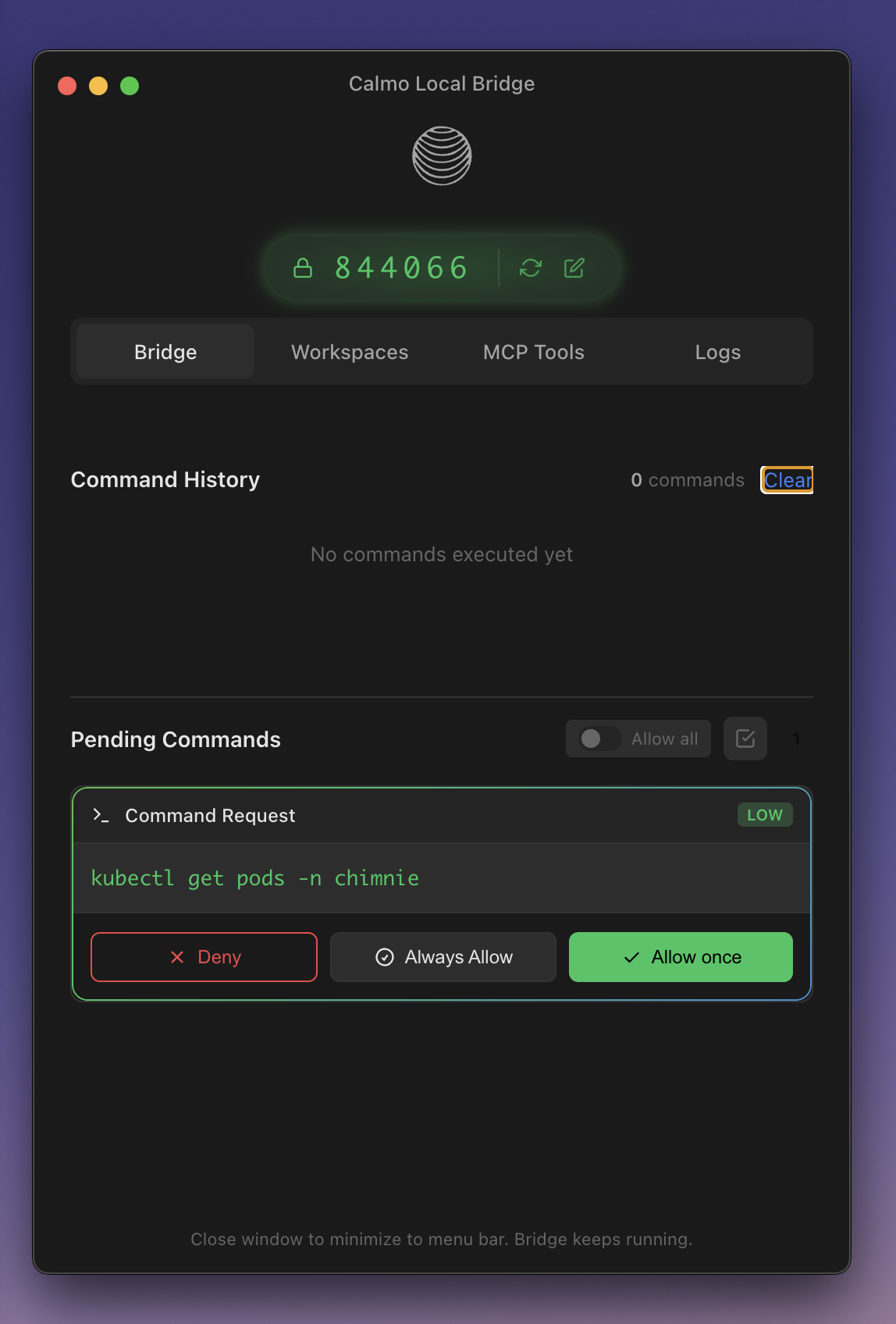 ```
kubectl get ns | grep argo
🟢 LOW RISK [Deny] [Always] [Allow]
```
Choose your action:
* **Deny** - Reject the command
* **Always** - Auto-approve this pattern in the future
* **Allow** - Execute just this once
Output streams in real-time to the **Terminal panel** (bottom center):
```
kubectl get ns | grep argo
🟢 LOW RISK [Deny] [Always] [Allow]
```
Choose your action:
* **Deny** - Reject the command
* **Always** - Auto-approve this pattern in the future
* **Allow** - Execute just this once
Output streams in real-time to the **Terminal panel** (bottom center):
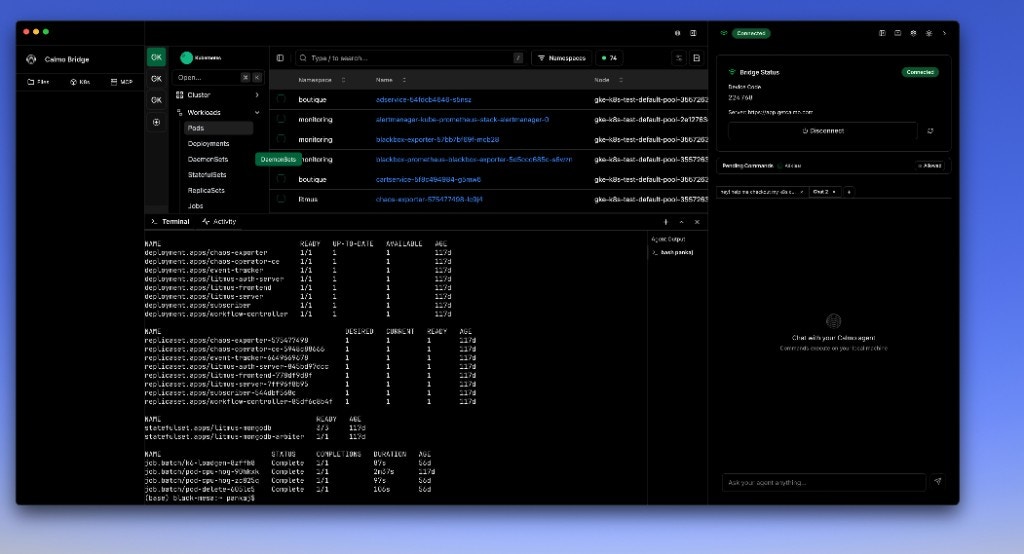 ```bash theme={null}
$ kubectl get ns | grep argo
argo-cd Active 45d
argo-workflows Active 32d
✓ Command completed
```
Calmo sees the output and continues the conversation in the chat panel. You can ask follow-up questions or request additional commands.
### Visual Workflow
```
┌────────────────────────────────────────────────────┐
│ 💬 Chat: "Check pods in staging" │
└────────────────────────────────────────────────────┘
↓
┌────────────────────────────────────────────────────┐
│ ⚠️ Command Approval Panel │
│ kubectl get pods -n staging │
│ 🟢 LOW RISK [Deny] [Always] [Allow] ←─── Click │
└────────────────────────────────────────────────────┘
↓
┌────────────────────────────────────────────────────┐
│ 🖥️ Terminal Panel │
│ $ kubectl get pods -n staging │
│ NAME READY STATUS RESTARTS │
│ api-server-abc123 1/1 Running 0 │
│ ✓ Command completed │
└────────────────────────────────────────────────────┘
↓
┌────────────────────────────────────────────────────┐
│ 💬 Chat: "All pods are running healthy in staging"│
└────────────────────────────────────────────────────┘
```
## Integrated Terminal
### Terminal Panel
The Terminal panel lives in the bottom section of the center area, below the file editor:
**Features:**
* **Shell Prompt** - Shows current working directory
* **Real-Time Output** - Command results stream as they happen
* **Color Support** - ANSI colors and formatting preserved
* **Interactive** - Supports prompts and user input
* **Resizable** - Drag the divider to adjust height
* **Persistent** - History persists across commands
**Example Output:**
```bash theme={null}
# Kubernetes batch jobs
NAME STATUS COMPLETIONS DURATION AGE
job-batch/k6-loadgen-8zff1d8 Complete 1/1 87s 55d
job-batch/pod-cpu-hog-v9hhkf Complete 1/1 2m37s 116d
job-batch/pod-cpu-hog-zc82cq Complete 1/1 97s 25d
job-batch/pod-delete-zbsl05 Complete 1/1 105s 55d
# StatefulSet operations
NAME READY AGE
statefulset.apps/litmus-mongodb 3/3 116d
statefulset.apps/litmus-mongodb-arbiter 1/1 116d
```
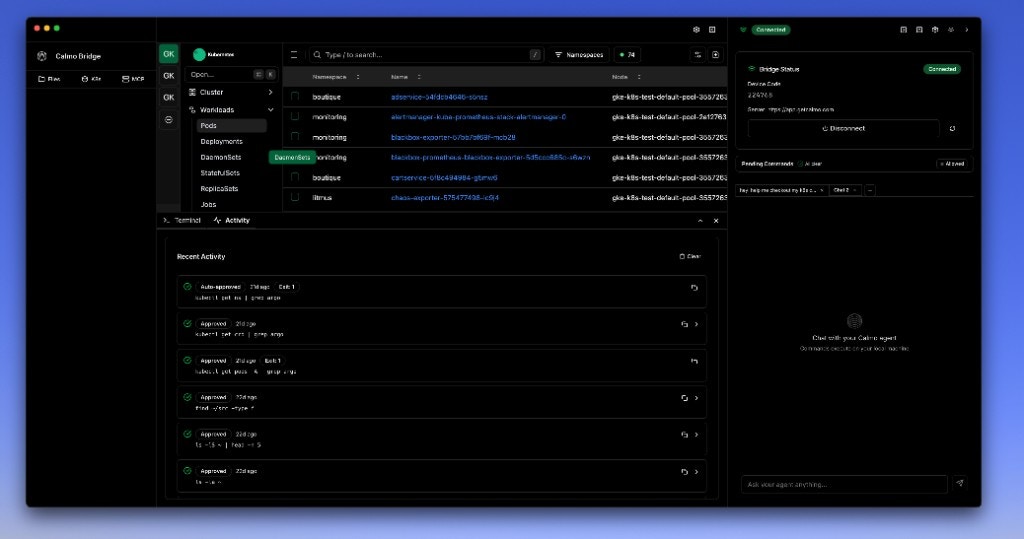
### Terminal vs. Activity Tabs
The bottom panel has two tabs:
| Tab | Purpose | Shows |
| ------------ | --------------------------- | ------------------------------------------------------------ |
| **Terminal** | Real-time command execution | Current command output, shell prompt, live streaming |
| **Activity** | Command history | Past commands with timestamps, status, and expandable output |
Switch between them to see live execution or review past commands.
```bash theme={null}
$ kubectl get ns | grep argo
argo-cd Active 45d
argo-workflows Active 32d
✓ Command completed
```
Calmo sees the output and continues the conversation in the chat panel. You can ask follow-up questions or request additional commands.
### Visual Workflow
```
┌────────────────────────────────────────────────────┐
│ 💬 Chat: "Check pods in staging" │
└────────────────────────────────────────────────────┘
↓
┌────────────────────────────────────────────────────┐
│ ⚠️ Command Approval Panel │
│ kubectl get pods -n staging │
│ 🟢 LOW RISK [Deny] [Always] [Allow] ←─── Click │
└────────────────────────────────────────────────────┘
↓
┌────────────────────────────────────────────────────┐
│ 🖥️ Terminal Panel │
│ $ kubectl get pods -n staging │
│ NAME READY STATUS RESTARTS │
│ api-server-abc123 1/1 Running 0 │
│ ✓ Command completed │
└────────────────────────────────────────────────────┘
↓
┌────────────────────────────────────────────────────┐
│ 💬 Chat: "All pods are running healthy in staging"│
└────────────────────────────────────────────────────┘
```
## Integrated Terminal
### Terminal Panel
The Terminal panel lives in the bottom section of the center area, below the file editor:
**Features:**
* **Shell Prompt** - Shows current working directory
* **Real-Time Output** - Command results stream as they happen
* **Color Support** - ANSI colors and formatting preserved
* **Interactive** - Supports prompts and user input
* **Resizable** - Drag the divider to adjust height
* **Persistent** - History persists across commands
**Example Output:**
```bash theme={null}
# Kubernetes batch jobs
NAME STATUS COMPLETIONS DURATION AGE
job-batch/k6-loadgen-8zff1d8 Complete 1/1 87s 55d
job-batch/pod-cpu-hog-v9hhkf Complete 1/1 2m37s 116d
job-batch/pod-cpu-hog-zc82cq Complete 1/1 97s 25d
job-batch/pod-delete-zbsl05 Complete 1/1 105s 55d
# StatefulSet operations
NAME READY AGE
statefulset.apps/litmus-mongodb 3/3 116d
statefulset.apps/litmus-mongodb-arbiter 1/1 116d
```
### Terminal vs. Activity Tabs
The bottom panel has two tabs:
| Tab | Purpose | Shows |
| ------------ | --------------------------- | ------------------------------------------------------------ |
| **Terminal** | Real-time command execution | Current command output, shell prompt, live streaming |
| **Activity** | Command history | Past commands with timestamps, status, and expandable output |
Switch between them to see live execution or review past commands.
 ## Command Approval Workflow
### Approval Panel
The Command Approval panel appears in the top right of the interface:
**Layout:**
```
┌───────────────────────────────────────────┐
│ ⚠️ Command Approval (3 commands) │
├───────────────────────────────────────────┤
│ kubectl get ns | grep argo │
│ 🟢 LOW RISK │
│ [Deny] [Always] [Allow] │
├───────────────────────────────────────────┤
│ kubectl get pods -A | grep argo │
│ 🟢 LOW RISK │
│ [Deny] [Always] [Allow] │
└───────────────────────────────────────────┘
```
**Elements:**
* **Command** - The exact command to be executed
* **Risk Badge** - Color-coded risk level
* **Three Action Buttons** - Deny, Always, Allow
* **Queue Count** - Number of pending commands (in header)
### Approval Actions
**Deny**
Rejects the command. Calmo will be notified that you denied it.
**Use when:**
* Command looks incorrect or dangerous
* You want Calmo to try a different approach
* The command would affect the wrong environment
**Result:** Command is not executed, marked as denied in activity history
**Always Allow**
Approves this command AND adds the pattern to your auto-approve list. Future matching commands will execute automatically without asking.
**Use when:**
* The command is safe and you use it frequently (e.g., `kubectl get`)
* You trust this pattern completely
* You want to streamline your workflow
**Result:** Command executes immediately, pattern added to always-allowed list
Be cautious with "Always". Never auto-approve destructive patterns like `kubectl delete` or `rm`.
**Allow Once**
Approves just this single execution. The next time Calmo suggests the same command, you'll need to approve it again.
**Use when:**
* The command is fine, but you want to review it each time
* Medium or high-risk operations
* Commands you use occasionally
**Result:** Command executes once, remains in pending queue for next time
### Risk Levels
Commands are automatically classified by risk:
**Low Risk** - Safe read operations that don't modify state
**Examples:**
```bash theme={null}
kubectl get pods
kubectl describe deployment api-server
kubectl logs my-pod-abc123
git status
git log
ls -la
cat config.yaml
docker ps
```
**Recommendation:** Safe to use "Always" for frequently-used patterns
**Medium Risk** - Operations that modify state but are generally reversible
**Examples:**
```bash theme={null}
kubectl delete pod my-pod # Pod will recreate
kubectl scale deployment api --replicas=3
git commit -m "message"
npm install package
docker stop container-id
```
**Recommendation:** Review each time or use "Always" selectively for trusted patterns
**High Risk** - Potentially dangerous operations with significant impact
**Examples:**
```bash theme={null}
kubectl delete deployment api-server
kubectl delete pvc data-volume
terraform destroy
rm -rf directory/
kubectl apply -f production.yaml
```
**Recommendation:** ALWAYS review manually. Never use "Always" for these patterns.
## Command Execution
### Basic Examples
**Infrastructure Operations:**
```bash theme={null}
# Check Kubernetes resources
kubectl get pods -n production
kubectl describe deployment api-server
kubectl logs my-pod-abc123 --tail=100 --follow
# View cluster status
kubectl get nodes
kubectl top pods -n monitoring
# Check Argo CD applications
kubectl get applications -n argocd
```
**Development Workflows:**
```bash theme={null}
# Git operations
git status
git log --oneline -10
git diff HEAD~1
git branch -a
# Package management
npm install
pip install -r requirements.txt
poetry install
pnpm build
# Docker operations
docker ps
docker logs container-id
docker-compose up -d
```
**System Administration:**
```bash theme={null}
# File system operations
ls -la /path/to/project
cat config.yaml
find . -name "*.log" -mtime -1
tree -L 2
# Process inspection
ps aux | grep node
top -bn1
df -h
```
## Common Use Cases
### Kubernetes Troubleshooting
A typical debugging workflow with the integrated terminal:
**You:** "Check if there are any failing pods in staging"
**Terminal:**
```bash theme={null}
$ kubectl get pods -n staging
NAME READY STATUS RESTARTS
api-server-7d4f8b-x9k2p 0/1 CrashLoopBackOff 5
worker-6b8c9d-abc12 1/1 Running 0
✓ Command completed
```
**Calmo:** "I see the api-server pod is in CrashLoopBackOff. Let me get more details."
**Terminal:**
```bash theme={null}
$ kubectl describe pod api-server-7d4f8b-x9k2p -n staging
Events:
Type Reason Age Message
---- ------ ---- -------
Warning BackOff 2m Back-off restarting failed container
✓ Command completed
```
**Calmo:** "Let me check the container logs for errors."
**Terminal:**
```bash theme={null}
$ kubectl logs api-server-7d4f8b-x9k2p -n staging
Error: Cannot connect to database at postgres:5432
Connection refused
✓ Command completed
```
**Calmo:** "The pod can't connect to the database. The postgres service might be down or misconfigured."
All of this happens in the same window—chat on the right, terminal output in the center.
### Development Environment Setup
```bash theme={null}
# Clone and setup a new project
git clone https://github.com/org/repo.git
cd repo
npm install
npm run dev
```
The terminal shows real-time progress for each step.
### Infrastructure as Code
```bash theme={null}
# Terraform workflow
cd terraform/staging
terraform init
terraform plan -out=plan.tfplan
terraform apply plan.tfplan
# Kustomize + kubectl
kustomize build overlays/staging | kubectl apply -f -
```
### Log Analysis
```bash theme={null}
# Search logs for errors
kubectl logs deployment/api -n production | grep -i error
# Tail logs in real-time
kubectl logs -f pod/api-server-abc123 -n production
# Get logs from specific container
kubectl logs pod/my-pod -c init-container -n staging --tail=50
```
The terminal preserves colors and formatting, making log analysis easier.
## Long-Running Processes
The terminal supports processes that run continuously:
### Starting Background Processes
```bash theme={null}
# Development servers
npm run dev
# Port forwarding
kubectl port-forward svc/api 8080:80 -n staging
# Log tailing
kubectl logs -f deployment/api -n production
# Watch commands
watch -n 5 kubectl get pods
```
### Managing Processes
**While Running:**
* Output streams continuously to the terminal
* You can continue chatting with Calmo
* New commands can be approved and queued
**Stopping Processes:**
* Ask Calmo: "Stop the port-forward process"
* Calmo will terminate the running process
* Or manually close the terminal tab
Long-running processes continue in the background even if you switch to the Activity tab. Switch back to Terminal to see live output.
## Working Directory
Commands execute in the context of your configured workspaces:
### Workspace Context
If you've added `/Users/pankaj/local_code/calmo-ci` as a workspace:
```bash theme={null}
# Calmo understands the workspace structure
$ pwd
/Users/pankaj/local_code/calmo-ci
# Can navigate within it
$ cd environments/staging
$ ls
kustomization.yaml deployment.yaml service.yaml
```
### Multiple Workspaces
With multiple workspaces, Calmo asks which one to use:
**You:** "List the files in this project"
**Calmo:** "Which workspace? You have:
* calmo-demos
* calmo-ci
* calmo-gmail"
**You:** "calmo-ci"
**Terminal:**
```bash theme={null}
$ cd /Users/pankaj/local_code/calmo-ci && ls
environments/ base/ README.md kustomization.yaml
```
## Activity Panel
### Command History
The Activity tab shows all executed commands:
**Each Entry Shows:**
* **Status Icon:**
* ✅ **Auto-approved** - Matched an always-allow pattern (shown with timestamp like "1d ago", "2d ago")
* ✅ **Approved** - Manually approved by you
* ❌ **Denied** - Rejected by you
* **Timestamp** - When the command ran (e.g., "1d ago", "2d ago", "Exit 1")
* **Command** - The full command that was executed (e.g., "kubectl get ns | grep argo")
* **Exit Status** - Shows "Exit 1" or "Exit 0" for command result
* **Expand Arrow** - Click to see full output and details
**Features:**
* **Searchable** - Find past commands by text
* **Clickable** - Click to expand and see full output
* **Copyable** - Click the copy icon to copy the command
* **Filterable** - Filter by status (approved, denied, auto-approved)
### Managing History
**Clear History:**
* Click **Clear** button to remove all history
* Useful for decluttering after long sessions
**Export History:**
* Commands are logged for your audit trail
* Logs persist across bridge restarts
## Environment & Shell
### Shell Integration
Commands run in your default shell with full environment:
**macOS/Linux:**
* Uses your default shell (`bash`, `zsh`, `fish`)
* Sources shell profile (`.bashrc`, `.zshrc`)
* Environment variables available
* PATH and aliases work
* Shell functions available
**Windows:**
* Uses PowerShell or cmd.exe (configurable)
* Environment variables available
* PATH settings honored
### Environment Variables
Your shell environment is fully available:
```bash theme={null}
$ echo $KUBECONFIG
/Users/pankaj/.kube/config
$ echo $NODE_ENV
development
$ which kubectl
/usr/local/bin/kubectl
```
Custom variables from your `.bashrc`/`.zshrc` are accessible.
## Best Practices
### 1. Use Specific Commands
Target your commands to limit output and improve clarity:
```bash theme={null}
# Good: Specific and bounded
kubectl logs deployment/api -n staging --tail=50
# Avoid: Unbounded output
kubectl logs deployment/api -n staging
```
### 2. Preview Before Applying
For infrastructure changes, always preview first:
```bash theme={null}
# First, preview
terraform plan
kubectl diff -f manifest.yaml
# Then apply (separate approval)
terraform apply
kubectl apply -f manifest.yaml
```
### 3. Scope Operations
Limit scope to reduce risk and improve performance:
```bash theme={null}
# Good: Namespaced
kubectl get pods -n specific-namespace
# Risky: All namespaces (slow, verbose)
kubectl get pods -A
```
### 4. Use Filters and Limits
Make output manageable:
```bash theme={null}
# Limit results
kubectl get events --sort-by='.lastTimestamp' --field-selector type!=Normal | head -n 20
# Use grep
kubectl get pods -A | grep -i error
# Tail logs
kubectl logs deployment/api --tail=100
```
### 5. Set Up Auto-Approve Wisely
**Safe to auto-approve:**
```
kubectl get
kubectl describe
kubectl logs
git status
git log
ls
cat
pwd
```
**Never auto-approve:**
```
kubectl delete
kubectl apply
rm
terraform destroy
git push
```
## Troubleshooting
### Command Not Found
If commands fail with "command not found":
1. **Verify installation**
```bash theme={null}
which kubectl
which terraform
```
2. **Check PATH**
```bash theme={null}
echo $PATH
```
3. **Use full path**
```bash theme={null}
/usr/local/bin/kubectl get pods
```
4. **Restart bridge** to reload environment
### Permission Denied
If commands fail with permission errors:
* Commands run with **your user permissions** (not root)
* Some operations may need `sudo` (use with caution)
* Check file/directory permissions
* Verify you're in the correct workspace
### Output Not Showing
If command output doesn't appear in the terminal:
1. **Check Terminal tab** - Ensure you're on Terminal (not Activity)
2. **Scroll down** - Output might be below viewport
3. **Wait** - Some commands take time to produce output
4. **Check Activity tab** - Command might have completed
### Command Stuck
If a command seems stuck:
1. **Check for approval** - Ensure you clicked Allow
2. **Long-running** - Some commands take time (e.g., `kubectl apply`)
3. **Interactive prompt** - Command might be waiting for input
4. **Ask Calmo to stop** - "Cancel the current command"
### Terminal Not Responding
If the terminal becomes unresponsive:
1. **Refresh** - Click the refresh icon
2. **Restart bridge** - Quit and relaunch the application
3. **Check logs** - Look for errors in Activity Log
***
*For assistance with CLI tools and terminal usage, contact our support team at [support@getcalmo.com](mailto:support@getcalmo.com).*
## Command Approval Workflow
### Approval Panel
The Command Approval panel appears in the top right of the interface:
**Layout:**
```
┌───────────────────────────────────────────┐
│ ⚠️ Command Approval (3 commands) │
├───────────────────────────────────────────┤
│ kubectl get ns | grep argo │
│ 🟢 LOW RISK │
│ [Deny] [Always] [Allow] │
├───────────────────────────────────────────┤
│ kubectl get pods -A | grep argo │
│ 🟢 LOW RISK │
│ [Deny] [Always] [Allow] │
└───────────────────────────────────────────┘
```
**Elements:**
* **Command** - The exact command to be executed
* **Risk Badge** - Color-coded risk level
* **Three Action Buttons** - Deny, Always, Allow
* **Queue Count** - Number of pending commands (in header)
### Approval Actions
**Deny**
Rejects the command. Calmo will be notified that you denied it.
**Use when:**
* Command looks incorrect or dangerous
* You want Calmo to try a different approach
* The command would affect the wrong environment
**Result:** Command is not executed, marked as denied in activity history
**Always Allow**
Approves this command AND adds the pattern to your auto-approve list. Future matching commands will execute automatically without asking.
**Use when:**
* The command is safe and you use it frequently (e.g., `kubectl get`)
* You trust this pattern completely
* You want to streamline your workflow
**Result:** Command executes immediately, pattern added to always-allowed list
Be cautious with "Always". Never auto-approve destructive patterns like `kubectl delete` or `rm`.
**Allow Once**
Approves just this single execution. The next time Calmo suggests the same command, you'll need to approve it again.
**Use when:**
* The command is fine, but you want to review it each time
* Medium or high-risk operations
* Commands you use occasionally
**Result:** Command executes once, remains in pending queue for next time
### Risk Levels
Commands are automatically classified by risk:
**Low Risk** - Safe read operations that don't modify state
**Examples:**
```bash theme={null}
kubectl get pods
kubectl describe deployment api-server
kubectl logs my-pod-abc123
git status
git log
ls -la
cat config.yaml
docker ps
```
**Recommendation:** Safe to use "Always" for frequently-used patterns
**Medium Risk** - Operations that modify state but are generally reversible
**Examples:**
```bash theme={null}
kubectl delete pod my-pod # Pod will recreate
kubectl scale deployment api --replicas=3
git commit -m "message"
npm install package
docker stop container-id
```
**Recommendation:** Review each time or use "Always" selectively for trusted patterns
**High Risk** - Potentially dangerous operations with significant impact
**Examples:**
```bash theme={null}
kubectl delete deployment api-server
kubectl delete pvc data-volume
terraform destroy
rm -rf directory/
kubectl apply -f production.yaml
```
**Recommendation:** ALWAYS review manually. Never use "Always" for these patterns.
## Command Execution
### Basic Examples
**Infrastructure Operations:**
```bash theme={null}
# Check Kubernetes resources
kubectl get pods -n production
kubectl describe deployment api-server
kubectl logs my-pod-abc123 --tail=100 --follow
# View cluster status
kubectl get nodes
kubectl top pods -n monitoring
# Check Argo CD applications
kubectl get applications -n argocd
```
**Development Workflows:**
```bash theme={null}
# Git operations
git status
git log --oneline -10
git diff HEAD~1
git branch -a
# Package management
npm install
pip install -r requirements.txt
poetry install
pnpm build
# Docker operations
docker ps
docker logs container-id
docker-compose up -d
```
**System Administration:**
```bash theme={null}
# File system operations
ls -la /path/to/project
cat config.yaml
find . -name "*.log" -mtime -1
tree -L 2
# Process inspection
ps aux | grep node
top -bn1
df -h
```
## Common Use Cases
### Kubernetes Troubleshooting
A typical debugging workflow with the integrated terminal:
**You:** "Check if there are any failing pods in staging"
**Terminal:**
```bash theme={null}
$ kubectl get pods -n staging
NAME READY STATUS RESTARTS
api-server-7d4f8b-x9k2p 0/1 CrashLoopBackOff 5
worker-6b8c9d-abc12 1/1 Running 0
✓ Command completed
```
**Calmo:** "I see the api-server pod is in CrashLoopBackOff. Let me get more details."
**Terminal:**
```bash theme={null}
$ kubectl describe pod api-server-7d4f8b-x9k2p -n staging
Events:
Type Reason Age Message
---- ------ ---- -------
Warning BackOff 2m Back-off restarting failed container
✓ Command completed
```
**Calmo:** "Let me check the container logs for errors."
**Terminal:**
```bash theme={null}
$ kubectl logs api-server-7d4f8b-x9k2p -n staging
Error: Cannot connect to database at postgres:5432
Connection refused
✓ Command completed
```
**Calmo:** "The pod can't connect to the database. The postgres service might be down or misconfigured."
All of this happens in the same window—chat on the right, terminal output in the center.
### Development Environment Setup
```bash theme={null}
# Clone and setup a new project
git clone https://github.com/org/repo.git
cd repo
npm install
npm run dev
```
The terminal shows real-time progress for each step.
### Infrastructure as Code
```bash theme={null}
# Terraform workflow
cd terraform/staging
terraform init
terraform plan -out=plan.tfplan
terraform apply plan.tfplan
# Kustomize + kubectl
kustomize build overlays/staging | kubectl apply -f -
```
### Log Analysis
```bash theme={null}
# Search logs for errors
kubectl logs deployment/api -n production | grep -i error
# Tail logs in real-time
kubectl logs -f pod/api-server-abc123 -n production
# Get logs from specific container
kubectl logs pod/my-pod -c init-container -n staging --tail=50
```
The terminal preserves colors and formatting, making log analysis easier.
## Long-Running Processes
The terminal supports processes that run continuously:
### Starting Background Processes
```bash theme={null}
# Development servers
npm run dev
# Port forwarding
kubectl port-forward svc/api 8080:80 -n staging
# Log tailing
kubectl logs -f deployment/api -n production
# Watch commands
watch -n 5 kubectl get pods
```
### Managing Processes
**While Running:**
* Output streams continuously to the terminal
* You can continue chatting with Calmo
* New commands can be approved and queued
**Stopping Processes:**
* Ask Calmo: "Stop the port-forward process"
* Calmo will terminate the running process
* Or manually close the terminal tab
Long-running processes continue in the background even if you switch to the Activity tab. Switch back to Terminal to see live output.
## Working Directory
Commands execute in the context of your configured workspaces:
### Workspace Context
If you've added `/Users/pankaj/local_code/calmo-ci` as a workspace:
```bash theme={null}
# Calmo understands the workspace structure
$ pwd
/Users/pankaj/local_code/calmo-ci
# Can navigate within it
$ cd environments/staging
$ ls
kustomization.yaml deployment.yaml service.yaml
```
### Multiple Workspaces
With multiple workspaces, Calmo asks which one to use:
**You:** "List the files in this project"
**Calmo:** "Which workspace? You have:
* calmo-demos
* calmo-ci
* calmo-gmail"
**You:** "calmo-ci"
**Terminal:**
```bash theme={null}
$ cd /Users/pankaj/local_code/calmo-ci && ls
environments/ base/ README.md kustomization.yaml
```
## Activity Panel
### Command History
The Activity tab shows all executed commands:
**Each Entry Shows:**
* **Status Icon:**
* ✅ **Auto-approved** - Matched an always-allow pattern (shown with timestamp like "1d ago", "2d ago")
* ✅ **Approved** - Manually approved by you
* ❌ **Denied** - Rejected by you
* **Timestamp** - When the command ran (e.g., "1d ago", "2d ago", "Exit 1")
* **Command** - The full command that was executed (e.g., "kubectl get ns | grep argo")
* **Exit Status** - Shows "Exit 1" or "Exit 0" for command result
* **Expand Arrow** - Click to see full output and details
**Features:**
* **Searchable** - Find past commands by text
* **Clickable** - Click to expand and see full output
* **Copyable** - Click the copy icon to copy the command
* **Filterable** - Filter by status (approved, denied, auto-approved)
### Managing History
**Clear History:**
* Click **Clear** button to remove all history
* Useful for decluttering after long sessions
**Export History:**
* Commands are logged for your audit trail
* Logs persist across bridge restarts
## Environment & Shell
### Shell Integration
Commands run in your default shell with full environment:
**macOS/Linux:**
* Uses your default shell (`bash`, `zsh`, `fish`)
* Sources shell profile (`.bashrc`, `.zshrc`)
* Environment variables available
* PATH and aliases work
* Shell functions available
**Windows:**
* Uses PowerShell or cmd.exe (configurable)
* Environment variables available
* PATH settings honored
### Environment Variables
Your shell environment is fully available:
```bash theme={null}
$ echo $KUBECONFIG
/Users/pankaj/.kube/config
$ echo $NODE_ENV
development
$ which kubectl
/usr/local/bin/kubectl
```
Custom variables from your `.bashrc`/`.zshrc` are accessible.
## Best Practices
### 1. Use Specific Commands
Target your commands to limit output and improve clarity:
```bash theme={null}
# Good: Specific and bounded
kubectl logs deployment/api -n staging --tail=50
# Avoid: Unbounded output
kubectl logs deployment/api -n staging
```
### 2. Preview Before Applying
For infrastructure changes, always preview first:
```bash theme={null}
# First, preview
terraform plan
kubectl diff -f manifest.yaml
# Then apply (separate approval)
terraform apply
kubectl apply -f manifest.yaml
```
### 3. Scope Operations
Limit scope to reduce risk and improve performance:
```bash theme={null}
# Good: Namespaced
kubectl get pods -n specific-namespace
# Risky: All namespaces (slow, verbose)
kubectl get pods -A
```
### 4. Use Filters and Limits
Make output manageable:
```bash theme={null}
# Limit results
kubectl get events --sort-by='.lastTimestamp' --field-selector type!=Normal | head -n 20
# Use grep
kubectl get pods -A | grep -i error
# Tail logs
kubectl logs deployment/api --tail=100
```
### 5. Set Up Auto-Approve Wisely
**Safe to auto-approve:**
```
kubectl get
kubectl describe
kubectl logs
git status
git log
ls
cat
pwd
```
**Never auto-approve:**
```
kubectl delete
kubectl apply
rm
terraform destroy
git push
```
## Troubleshooting
### Command Not Found
If commands fail with "command not found":
1. **Verify installation**
```bash theme={null}
which kubectl
which terraform
```
2. **Check PATH**
```bash theme={null}
echo $PATH
```
3. **Use full path**
```bash theme={null}
/usr/local/bin/kubectl get pods
```
4. **Restart bridge** to reload environment
### Permission Denied
If commands fail with permission errors:
* Commands run with **your user permissions** (not root)
* Some operations may need `sudo` (use with caution)
* Check file/directory permissions
* Verify you're in the correct workspace
### Output Not Showing
If command output doesn't appear in the terminal:
1. **Check Terminal tab** - Ensure you're on Terminal (not Activity)
2. **Scroll down** - Output might be below viewport
3. **Wait** - Some commands take time to produce output
4. **Check Activity tab** - Command might have completed
### Command Stuck
If a command seems stuck:
1. **Check for approval** - Ensure you clicked Allow
2. **Long-running** - Some commands take time (e.g., `kubectl apply`)
3. **Interactive prompt** - Command might be waiting for input
4. **Ask Calmo to stop** - "Cancel the current command"
### Terminal Not Responding
If the terminal becomes unresponsive:
1. **Refresh** - Click the refresh icon
2. **Restart bridge** - Quit and relaunch the application
3. **Check logs** - Look for errors in Activity Log
***
*For assistance with CLI tools and terminal usage, contact our support team at [support@getcalmo.com](mailto:support@getcalmo.com).*